
You build a tidy spreadsheet, convert it to PDF, and open the result: column F has wandered onto page 4, the text is the size of a grain of rice, and there's a blank page at the end for good measure. Nothing is broken. A spreadsheet is an endless canvas and a PDF is a stack of fixed-size pages, so something has to decide where the cuts go. If you don't decide, the software does it for you. This guide shows how to take that decision back, and when a CSV file needs a different approach.
Why do spreadsheets break when they become PDFs?
A spreadsheet has no pages. It has rows and columns that go on as far as you like. A PDF is made of pages with a fixed size, usually A4 or Letter, and the layout is frozen the moment you convert.
So the converter has to chop your sheet into page-sized pieces. If your table is wider than a portrait page, the extra columns spill onto new pages. If you have a few stray cells far from the main table, those get their own pages too.
The good news: almost every fix happens in the spreadsheet before you convert. Think of it as setting the table before dinner.
Fix 1: Switch to landscape
Wide tables almost always fit better on a page turned sideways. In Excel, open the Page Layout tab and set Orientation to Landscape. In Google Sheets, it's in the print settings.
This single change solves a surprising share of cut-off column problems, and it takes five seconds.
Fix 2: Fit all columns on one page width
Landscape not enough? Tell the spreadsheet to scale the table down so every column lands on the same page. In Excel's Page Layout tab, set the width to 1 page and the height to automatic. In Page Setup, the same idea is called Fit to 1 page wide.
The trade-off is text size. A modest squeeze is fine. If you have to shrink it until it's unreadable, move to the next fix instead.
Fix 3: Set a print area and hide what nobody needs
Blank pages usually come from stray content: a note typed in cell Z40, a formatted cell nobody remembers, a helper column. Select only the range you actually want, then set it as the print area.
While you're there, hide columns the reader doesn't need, like internal IDs or calculation helpers. A narrower table is easier to read and easier to fit.
- Select the cells you want in the PDF, then choose Set Print Area
- Hide helper columns instead of deleting them
- Check the last used cell with Ctrl+End to spot stray content
Fix 4: Repeat the header row on every page
If your table runs over several pages, page 3 without headers is a wall of mystery numbers. In Excel's Page Layout tab, use Print Titles and choose the top row to repeat on each page.
It's a small touch that makes a long report feel professional.
Fix 5: Check the preview before you convert
Use your spreadsheet's print preview, or Page Break Preview in Excel, to see exactly where the pages split. What you see there is the best guide to what you'll get as a PDF.
Then run the file through Excel to PDF and open the result. Scroll through every page once. It takes a minute and saves you the embarrassment of emailing a broken table.
What about CSV files?
A CSV is plain text with commas between values. It has no column widths, fonts or page setup at all, which is why a raw CSV rarely looks good as a PDF.
You have two options. If the layout matters, open the CSV in a spreadsheet, tidy it up with the fixes above, save it as a workbook, and convert with Excel to PDF. If you just need a quick readable copy of the data, CSV to PDF turns it into a PDF directly.
Going the other way round? If the data is trapped in a PDF, PDF to Excel can pull the table back out.
Fix 6: Tidy up the finished PDF
Once the PDF exists, you can still polish it. Remove a stray blank page with Remove PDF Pages, or combine several sheets into one report with Merge PDF. That's handy when each tab of a workbook becomes its own file.
Try it now: Merge PDF
Free, quick, and nothing to install. Open Merge PDF →
Sending the report by email? Check the final file size. If it's too big, there's a guide on making a PDF small enough to email.
A real example: the monthly budget that grew a fifth page
Say you keep a household budget with twelve month columns, a totals column, and a notes column on the far right. On screen it looks lovely. As a PDF it's three pages wide, and the notes column sits alone on page three with one cell of text.
The fix is a three-step routine: set landscape, set fit to one page wide, and ask yourself whether the notes column belongs in the PDF at all. Hide it and the table fits on a single page at a comfortable size.
That last question is the one people skip. A PDF is a finished document for a reader, not a backup of your working file. Include what the reader needs and nothing else.
Which mistakes make it worse?
A few habits turn a small layout problem into a frustrating one:
- Shrinking the scale to 30% so everything fits, then wondering why nobody can read it
- Merging cells across a whole row for a title, which can confuse page breaks
- Converting without looking at the result, then sending it
- Fixing the problem in the PDF by cropping, when the real cause was the spreadsheet layout
- Forgetting that a very wide table may simply deserve two pages, with the first column repeated or the table split by topic
When is it better to split the table?
Sometimes the honest answer is that your table is too wide for any page. Twenty columns of figures will never be comfortable on A4. Instead of squeezing, split the sheet into two logical tables, for example income on one page and expenses on the next, then convert and combine them into one file with Merge PDF.
Readers will thank you. A clear table on two pages beats a crowded one on a single page every time.
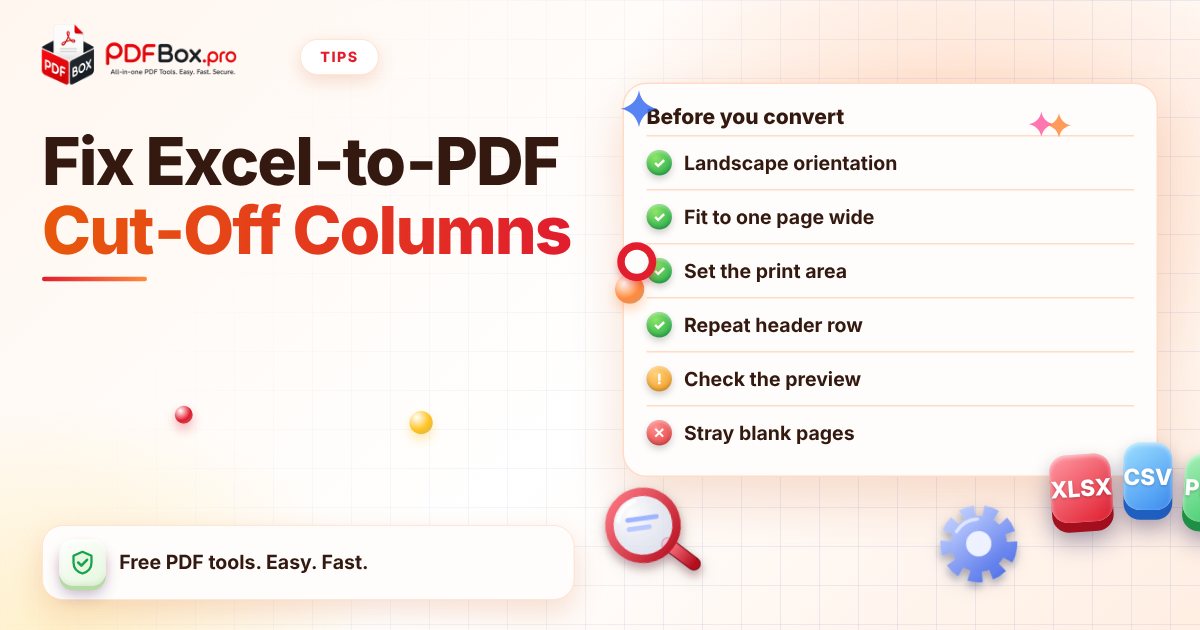
A quick checklist before you convert
Run through this once and most problems disappear:
- Orientation set to landscape for wide tables
- Fit to one page wide, if the text stays readable
- Print area set, stray cells cleared
- Header row repeats on every page
- Print preview checked, PDF scrolled through once
- Anything very sensitive? Avoid uploading it to any website, this one included
Frequently asked questions
Why are my Excel columns split across pages in the PDF?
Because the table is wider than one page. Switch to landscape, set the sheet to fit one page wide, or hide columns you don't need, then convert again.
Why does my Excel to PDF conversion have blank pages?
Usually there is stray content or formatting somewhere outside the main table. Set a print area around the cells you want, then convert. You can also delete blank pages from the finished PDF.
Can I convert a CSV file to PDF?
Yes. A CSV has no layout, so for a polished result open it in a spreadsheet, tidy it up and save it first. For a quick readable copy, a CSV to PDF converter works directly.
Back to all posts