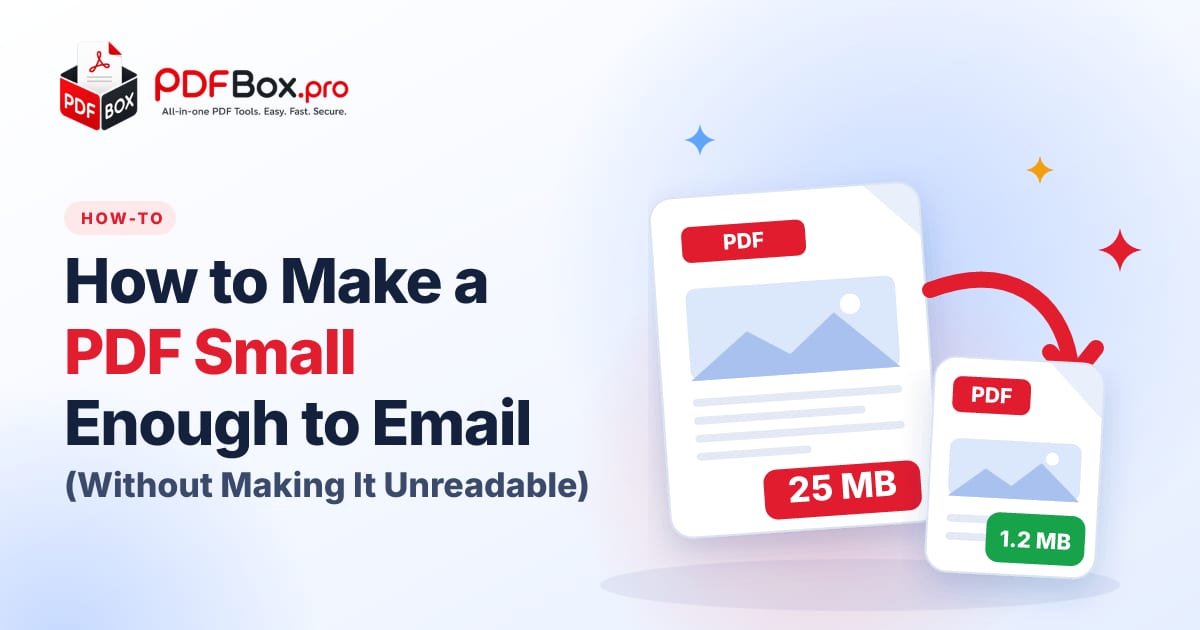
You attach the file, hit send, and the mail app tells you the attachment is too large. It is always the PDF that has the one important document in it, and it is always due in ten minutes. The good news: nearly every oversized PDF can be shrunk to a fraction of its size in seconds, and you do not need to install anything to do it. This guide explains why PDFs balloon, how to shrink yours with the free Compress PDF tool, and what to do when compression alone is not enough.
Why is my PDF so big in the first place?
A PDF is a container. The text inside is tiny; a whole novel is only a few hundred kilobytes of text. What makes a PDF heavy is almost always images. A phone photo can be 3 to 6 MB by itself, and a scanner set to a high resolution can turn a ten-page contract into a 40 MB file because every page is stored as one huge picture.
Two other culprits show up often: fonts embedded in full (every character of every typeface, even the ones you never used) and leftover data from editing, such as old versions of images that are still hidden inside the file. None of that is visible on the page, but all of it counts against your attachment limit.
- Scans and photos are the number one cause. A scanned page is a picture, not text.
- High-resolution images exported from design or presentation software are number two.
- Embedded fonts and hidden edit data add a little, but rarely a lot.
How big can an email attachment actually be?
Limits vary by provider and change over time, so check your own mail service before you assume a number. As a general rule many mail systems cap a single message at around 20 to 25 MB, and some company or school servers set it far lower. Encoding makes it worse: an attachment grows a little when it is packed into an email, so a file that looks just under the limit on your desktop can still bounce.
A safe working target is to keep a PDF under about 10 MB if you can, and much smaller if the recipient is likely to open it on a phone with a slow connection. Small files also upload faster to application portals, which are often stricter than email.
How do I compress a PDF in under a minute?
The fastest route is a browser tool, because there is nothing to download and it works the same on a laptop, a tablet or a phone. Here is the whole process with PDFbox:
Try it now: Compress PDF
Free, quick, and nothing to install. Open Compress PDF →
Open the tool, add your file, press the compress button, and download the smaller version. Compare the size of the new file with the original; if it is now comfortably under your limit, you are done.
One habit worth building: always keep the original. Compression works by reducing the detail stored in images, so the smaller copy is great for sending and reading on screen, but the original is what you want if you ever need to print at high quality. Save the compressed one under a new name, such as contract-small.pdf.
What if the file is still too large after compressing?
Some documents simply contain too much. A 200-page scanned report will not shrink to 2 MB without becoming hard to read. When compression alone does not get you there, change the question from how to make it smaller to how much of it does the recipient actually need.
If only part of the document matters, use Extract PDF Pages to pull out the pages that count, or Remove PDF Pages to delete the cover sheets and blank pages nobody needs. Fewer pages means a smaller file, with no loss of quality on the pages that stay.
If the recipient really does need everything, Split PDF lets you cut the document into two or three parts and send them as separate emails. Name them clearly, for example report-part-1-of-3.pdf, so nobody has to guess the order.
Does compressing a PDF ruin the quality?
It can, if you push too far, which is why it is worth looking at the result before you send it. Compression trades image detail for file size. Text and simple graphics generally stay sharp; photos and scans are where you may notice softer edges or slightly muted colors.
Open the compressed file and zoom to 100 percent on the page that matters most, such as a signature block, a table of small numbers or a stamped seal. If you can read everything comfortably there, the file is fine for email. If something has become fuzzy, go back to the original and try one of the page-trimming options above instead.
Which tricks help before I even compress?
A few small habits keep PDFs light from the start, so you rarely hit the limit at all:
- Scan at a sensible resolution. For ordinary documents, a mid-range setting is plenty; the highest setting multiplies the file size with no visible benefit on screen.
- Combine images the right way. If you are turning photos into a document, JPG to PDF is quicker than pasting pictures into a word processor and exporting, and it avoids stray formatting.
- Merge only what you need. Before you use Merge PDF to bundle documents, ask whether every attachment belongs in the bundle.
- Send a link for the very big stuff. If the file is genuinely huge, a shared-folder link is kinder to everyone's inbox than a 25 MB attachment.
Should I password-protect the PDF before emailing it?
If the document contains personal or financial details, yes, it is a good habit. You can add a password with Protect PDF after you have compressed the file, then share the password through a different channel, such as a text message. As a general rule, avoid uploading highly sensitive documents to any website; for those, use whatever tools your organization approves.
The short version
Big PDFs are almost always full of big images. Compress the file, check the result at 100 percent zoom, keep the original, and if it is still too heavy, send fewer pages or split it into parts. That covers nearly every bounced attachment you will ever meet, and each step takes seconds.
Next time an email refuses your PDF, you will know exactly what to do. And if you want to explore the rest of the toolbox, the Merge PDF and Organize PDF tools are good places to continue.
Frequently asked questions
How do I reduce the size of a PDF for email?
Open a compressor such as the free Compress PDF tool, add your file, compress it and download the smaller copy. If it is still too large, remove unneeded pages or split the document into parts.
Why is my scanned PDF so large?
A scanned page is stored as a picture, and high scan resolutions make every picture very large. Scanning at a lower resolution or compressing the finished PDF reduces the size.
Will compressing a PDF change how it looks?
Compression reduces image detail to save space, so photos and scans can look slightly softer. Text and simple graphics usually stay sharp. Keep the original file in case you need full quality later.
Back to all posts