
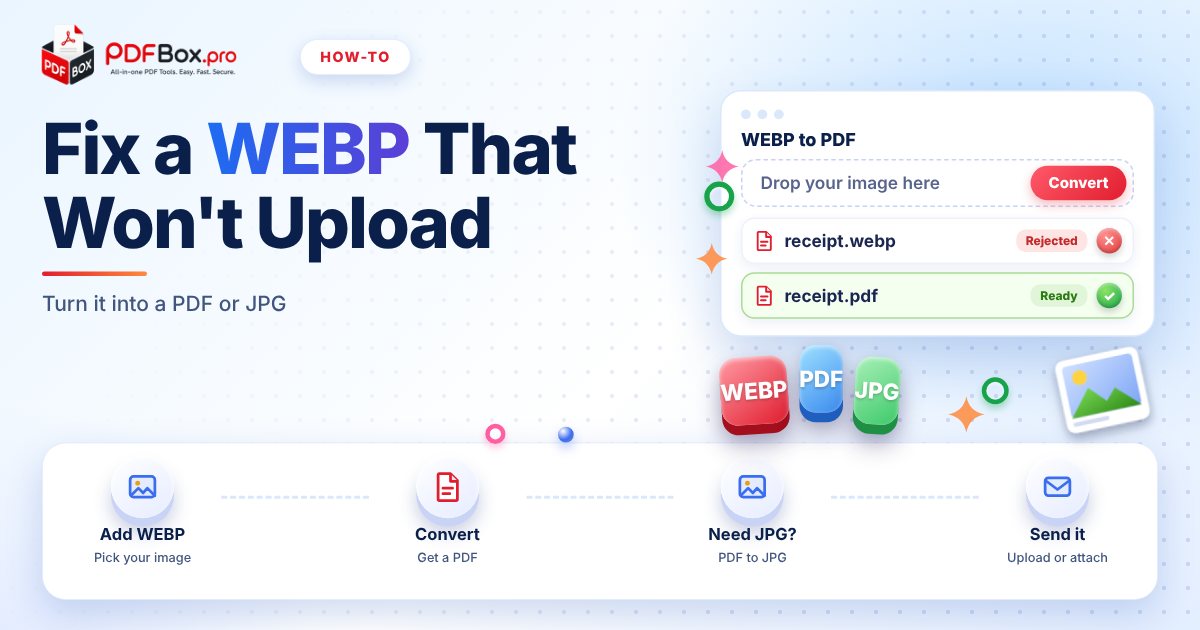
You right-click a picture, hit Save, and the file lands on your desktop as receipt.webp. Then you try to attach it to a form, drop it into a document or send it to a printer, and you get a polite error: file type not supported. Nothing is wrong with the picture. The format is just newer than half the software it has to travel through. The good news: fixing it takes about a minute, and a PDF is usually the friendliest format to land in.
What is a WEBP file, and why do I keep getting them?
WEBP is an image format created to make pictures on websites load faster. Many sites now serve images as WEBP behind the scenes, so when you save one, your browser hands you exactly what the site had: a .webp file instead of the JPG or PNG you expected.
WEBP itself is a perfectly good format. The trouble starts when the picture leaves your browser. Older office software, some upload forms, certain print shops and a few email tools were built when JPG and PNG were the only images anyone needed, and they simply do not recognise WEBP.
A quick way to spot the problem: look at the file name. If it ends in .webp, that is the culprit. If your computer shows a generic icon instead of a thumbnail, or a program says it cannot open the file, the format is almost certainly the reason. Renaming the file to .jpg by hand does not help, because the picture inside is still WEBP and the software will still choke on it.
So the file is fine. It just needs to be wrapped in something everybody accepts.
Why is a PDF a good place to put a WEBP image?
A PDF keeps its layout on any device, and almost every upload form, printer, email app and phone can open one. Put your image on a PDF page and it stops being a "weird image file" and becomes a plain document.
That matters most when the picture is really a document in disguise: a screenshot of a booking confirmation, a photo of a receipt, a saved ticket, a signed form someone sent as an image.
There is also a practical bonus for anything you plan to keep: a PDF is easy to name, file away and find again later, while a folder full of image(4).webp files is not.
- Forms that say "upload a PDF" will accept it.
- Printing works the same everywhere, with the image sitting neatly on a page.
- Several images can become one multi-page file, which is easier to send than a folder of loose pictures.
How do I convert WEBP to PDF?
This is the quick path. It works the same for one image or several.
- Open the WEBP to PDF tool.
- Add your
.webpimage. - Press the convert button and download the PDF when it is ready.
- Open the result and check that the picture is the right way up and nothing is cut off.
What if the form wants a JPG, not a PDF?
Some forms are stricter than others and ask for a JPG specifically, such as profile photo boxes or ID upload fields. There is no direct WEBP-to-JPG button on PDFbox, but there is a simple two-step route through a PDF.
First turn the WEBP into a PDF with WEBP to PDF. Then open PDF to JPG and convert that PDF back out as a JPG. You end up with a JPG that any form will take.
Keep one thing in mind: JPG is a lossy format, so every time you save an image as a JPG it is compressed a little. Do the conversion once, from the original, rather than converting the same picture over and over.
How do I turn several WEBP images into one PDF?
Say you saved six product photos, or screenshots of a multi-page online statement, all as WEBP. Sending six attachments is clumsy, and the recipient has to open each one.
Convert each image with WEBP to PDF, then join the results with Merge PDF. If you already have a mix of JPG photos and PDFs lying around, Merge JPG and PDF puts images and PDFs together in one go.
Before you merge, name the files in the order you want them (01-front, 02-back) so you do not have to rearrange anything afterwards. If the pages still come out in the wrong order, Organize PDF lets you drag them into place.
What are the common mistakes with image-to-PDF conversions?
A few small slips cause most of the "why does this look bad" messages:
- Converting a tiny thumbnail. If the saved image is small, no tool can add detail that is not there. Go back and save the largest version the website offers.
- Forgetting the orientation. A phone screenshot is tall, a desktop one is wide. Check the result, and use Rotate PDF if a page ended up sideways.
- Sending the original and the PDF. Pick one. Two versions of the same thing invite the question "which one is final?"
- Not opening the file before sending. Take ten seconds to scroll through it. It is the cheapest quality check there is.
- Uploading something very sensitive. As with any website, avoid uploading highly sensitive documents, such as ID scans, to tools you do not need to use.
Is the PDF too big to send afterwards?
Pictures can turn into surprisingly heavy PDFs, especially when you combine many of them. If an email bounces or an upload form complains about size, run the file through Compress PDF and check that the text and details are still easy to read.
Try it now: Compress PDF
Free, quick, and nothing to install. Open Compress PDF →
If it is still too big, split the job. Split PDF can cut it into two or three smaller files, which is often kinder to the recipient anyway.
A quick checklist before you send
Whatever the reason you started this, run through these five points and you will rarely get a second round of "can you resend that?"
- The picture is the best-quality version you could save.
- Pages are in the right order and the right way up.
- Nothing important is cropped out at the edges.
- The file name says what it is (
rental-receipt-march.pdf, notdownload (3)). - The file opens on your own device, and it is small enough to attach.
Frequently asked questions
Why do images save as WEBP instead of JPG?
Many websites serve pictures as WEBP because the format is designed to load quickly online. When you save the image, your browser keeps whatever format the site used, so you get a .webp file even though you expected a JPG.
How do I convert a WEBP file to PDF for free?
Open the WEBP to PDF tool on PDFbox.pro, add your .webp image, press convert and download the PDF. Nothing needs to be installed.
Can I convert WEBP to JPG?
Not with a single button on PDFbox, but you can do it in two steps: convert the WEBP to a PDF, then convert that PDF to JPG with the PDF to JPG tool. Convert once from the original, because JPG is a lossy format.
Back to all posts