
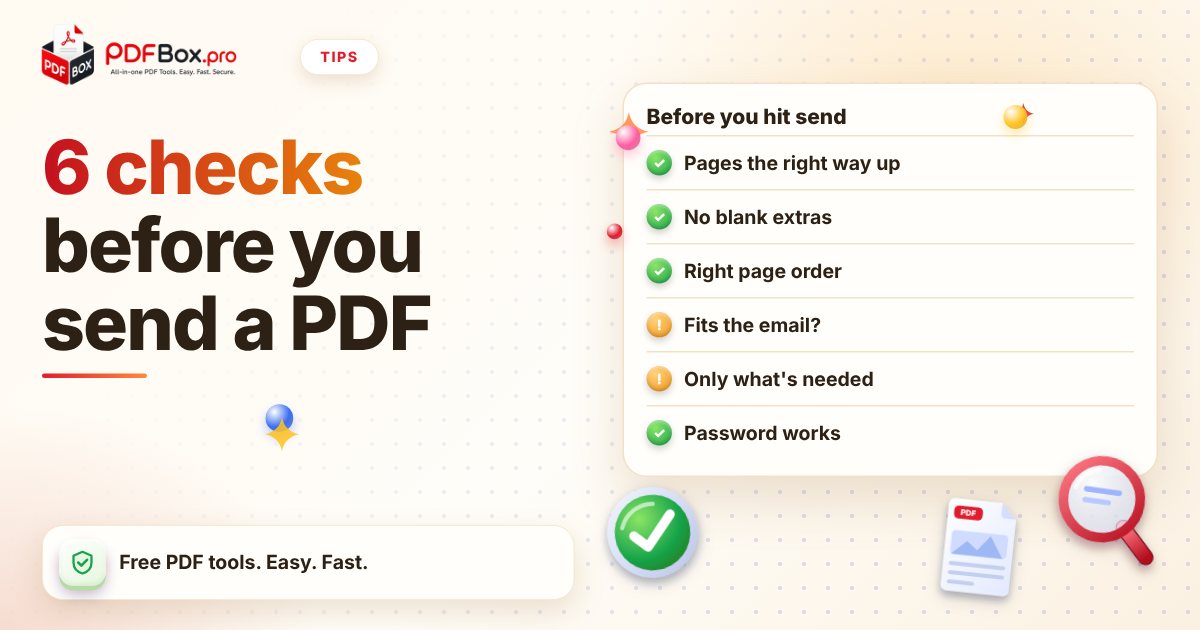
You hit send. Ten minutes later the reply arrives: "Page 4 is upside down, and what's the blank page at the end?" Nobody died, but it's a small, avoidable wince, and it happens most with the PDFs that matter: applications, invoices, contracts. The fix isn't more effort, just a different order. Open the finished file the way the recipient will, look for six specific things, and fix what you find. It's about two minutes. Here's the routine, with the tool for each snag.
Why look at the PDF again if you just made it?
Because the file you made and the file the other person opens can differ. A converted Word document may break a page differently than you expected. A scan may have come out rotated. A merged file may have its parts in the wrong order. None of that shows up in the tool you used to make it; it shows up when you open the result and actually scroll.
So the rule is simple: never send a PDF you haven't opened. Use the PDF Viewer to open it in your browser and scroll top to bottom. Don't read it, just look at it, the way a stranger would in the first five seconds.
Check 1: Is every page the right way up?
Phone scans and scanner feeders love to produce one landscape page in a portrait document, or a page that's upside down. Reviewers will rotate it themselves, but it looks careless and it can hide a page they never get to.
If something is sideways, fix it with Rotate PDF. You can turn the whole file or just the pages that need it, then re-open the result to confirm.
Check 2: Are there pages that shouldn't be there?
Blank pages at the end, a duplicate cover, the "scan again" attempt you forgot to delete. They are easy to miss when you're building the file and obvious when you scroll through it.
Use Remove PDF Pages to cut them. If the problem is the opposite, you only want a few pages out of many, Extract PDF Pages keeps just the ones you name.
- A blank last page left by a document that ended just past the margin
- A page you scanned twice
- A cover sheet or draft page that was never meant to go out
Check 3: Is everything in the right order?
This one bites most after merging. If you combined a cover letter, a CV and some certificates, check that the cover letter comes first and the attachments follow the order you mentioned in your email. A page 3 that appears before page 2 gets noticed fast.
Organize PDF lets you reorder pages, so you can drag things into place rather than start the merge over. If you're still assembling the file, Merge PDF puts the parts together in the order you set.
Check 4: Will it actually fit in the email?
Check the file size before you attach it, not after the bounce message. Photos and scans are the usual culprits, and a handful of them can make a short document surprisingly heavy. Different email providers and upload forms set different attachment limits, so look at the limit for where you're sending it.
If the file is too big, run it through Compress PDF and open the smaller version in the viewer before you send it. Compression can reduce image quality, so scroll through again and make sure small print, stamps and signatures are still readable. If they aren't, pick a gentler setting or split the file in two parts.
Try it now: Compress PDF
Free, quick, and nothing to install. Open Compress PDF →
Check 5: Is there anything in it you didn't mean to share?
Scroll slowly this time. Does the file include a page with an ID number you didn't need to include, or a statement with more months than the person asked for? Sending only what was requested is a good habit with any document.
Trim with Extract PDF Pages or Remove PDF Pages. And as general advice, avoid uploading highly sensitive documents to any website, and think twice about who really needs the full version of a document.
Check 6: Should it be locked, and does it open?
If the file contains personal details, consider adding a password with Protect PDF. It encrypts the file so it asks for a password when opened. Send the password through a different channel than the file itself, such as a text message instead of the same email.
Then do the final test: open the protected file and type the password yourself. A password you mistyped while setting it is a very annoying thing to discover after the recipient does.
What mistakes do people make even with a checklist?
The most common one is checking the source file instead of the final one. You glance at the Word document, it looks fine, you convert it, and you send the PDF without opening it. The conversion is exactly where surprises happen, so always look at the last file in the chain.
The second is fixing one problem and creating another. Compressing a file after you added a password is a classic: do your edits first, then lock it last. And if you rotate or reorder pages after merging, open the result again, because it takes ten seconds and catches the slip.
The third is rushing the one document that is urgent. Those are exactly the files where a quick look pays off most. A two-minute check is cheaper than a follow-up email asking you to resend.
What does the full routine look like in practice?
Open the file in the PDF Viewer. Scroll once for orientation, once for extra or missing pages, once for order. Check the file size. Look for anything that shouldn't be there. Add a password if the content calls for it. Then open the final file one more time and send it.
The first few times it feels like a lot. By the fourth, you'll do it automatically, and the "page 4 is upside down" replies stop coming.
Frequently asked questions
How can I check a PDF before I send it?
Open it in a PDF viewer and scroll through every page. Look at orientation, page order, blank or extra pages, and whether the text and images are readable. PDFbox has a free PDF Viewer for this, and you can fix problems with the rotate, remove-pages, organize and compress tools.
Why does my PDF have a blank page at the end?
It usually comes from the source document, for example a Word file whose last line or table spills just past the page margin, or from a scan of a blank back side. You can delete it with a Remove PDF Pages tool, or fix the source and convert again.
How do I send a PDF password to someone safely?
Send the password by a different route than the file. If you emailed the PDF, text the password or tell it to them in person. Sending both in the same message defeats the point of having a password.
Back to all posts