Some files are made for machines, not for people. A JSON export, an XML feed, a chunk of HTML, a plain text log: perfectly useful to a developer, baffling to the colleague, client or teacher you need to send it to. Half the time they cannot even open it without picking an app, and the other half the file opens as a wall of angle brackets. A PDF fixes that. It is the format everybody already knows how to open, and it looks the same on a phone, a laptop and a printout. The trick is picking the right converter for the file you have. Here is a quick tour of five of them, when each one earns its keep, and the small mistakes that cause most of the head-scratching.
Why turn a technical file into a PDF at all?
Because the person on the other end is rarely the person who made the file. A project manager wants to read a data export, not install a JSON viewer. A landlord wants to see the text of an agreement, not a mystery attachment. A professor wants one file they can open on any device.
A PDF also behaves well afterwards. You can add page numbers, merge it with other documents, compress it for email or lock it with a password. Raw .json or .xml files can't do any of that.
- Everyone can open it without picking an app
- The pages look the same on every device
- It is easy to print, merge, number and send
Which converter matches which file?
Start with the file extension. It tells you almost everything.
Each of these tools lets you either upload a file or paste your content straight into a box, which is handy when you only have a snippet and no file to upload.
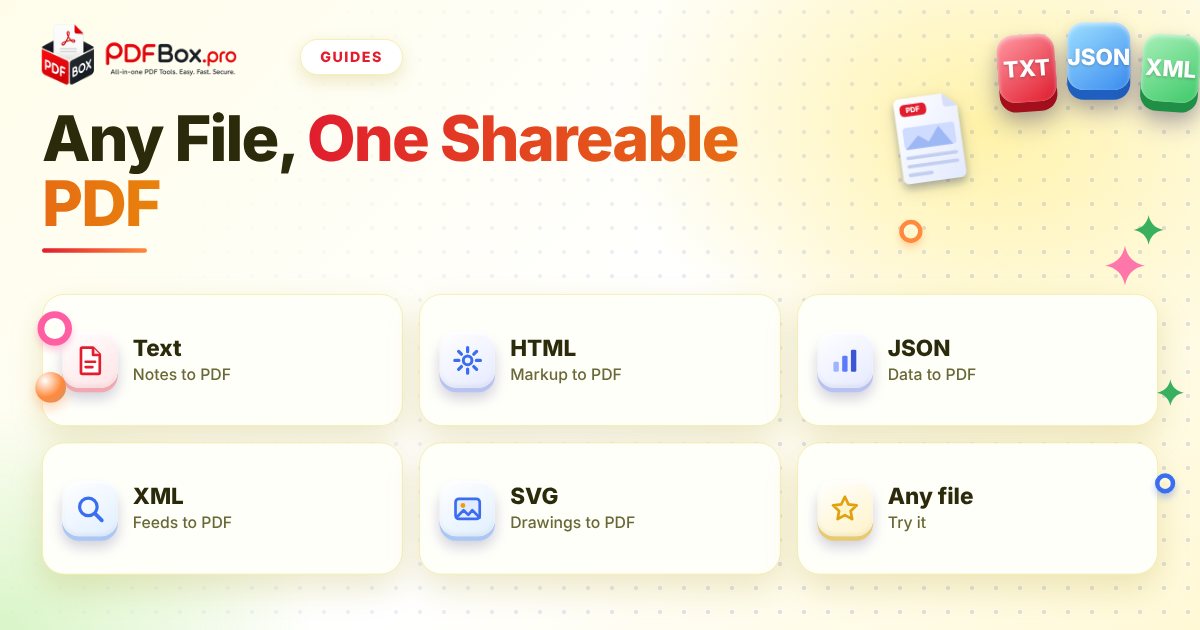
- .txt or copied notes: use Text to PDF
- .html or a snippet of markup: use HTML to PDF
- .json data or an API response: use JSON to PDF
- .xml feeds and exports: use XML to PDF
- .svg drawings and logos: use SVG to PDF
- Something else entirely: try Convert Any File
How do you turn a text file into a clean PDF?
Plain text is the simplest case, and the one people overthink. Open Text to PDF, upload your .txt file or paste the text, press the button and download the result.
Before you convert, spend thirty seconds tidying the source. Delete stray blank lines, fix the odd line that ends mid-sentence, and put a title on the first line. Plain text has no styling of its own, so the PDF will be only as tidy as what you put in.
It is great for meeting notes, a chat log you need to keep, a letter drafted in a notes app, or a README you want to hand to a non-developer.
Can you save an HTML page or snippet as a PDF?
Yes. HTML to PDF takes an HTML file or markup you paste in, which makes it useful for things like an email template you want to proof, a simple invoice you built by hand, or a block of formatted content you want to archive.
Two tips. First, if your HTML pulls in images or styles from other files, those pieces may not come along when you upload only the .html, so check the PDF before you send it. Second, keep the markup simple. Plain headings, paragraphs and tables convert far more predictably than a page full of scripts and animations.
Always open the result and scroll through it. That takes ten seconds and saves the awkward follow-up email.
What about JSON and XML? Won't it just look like code?
It will look like structured data, which is exactly the point. A PDF of JSON or XML is a readable snapshot you can attach to a ticket, a report or an email. Nobody has to open an editor.
Use JSON to PDF for API responses, config files and exports. Use XML to PDF for feeds, sitemaps and exported records. Both accept a file or pasted content.
One thing worth knowing: these tools present your data as it is. They do not turn it into a designed report. If the audience needs a neat table, a better route is often to get the data into a spreadsheet first, and our guide on getting a table out of a PDF and into Excel covers the opposite direction when you need it.
How do you send an SVG drawing as a PDF?
SVG is the format for logos, diagrams and icons that need to stay sharp at any size. The catch is that many people simply cannot open one, and some upload forms refuse it.
SVG to PDF wraps the drawing in a PDF that anyone can open and print. It is a handy way to send a logo to a print shop, a diagram to a client, or a floor plan sketch to a landlord without asking them to install anything.
What mistakes should you avoid?
Most problems with these conversions are small and avoidable.
Run through this list before you hit send:
- Converting a broken file. A missing bracket in JSON or XML is easier to fix before conversion than after.
- Skipping the preview. Always scroll through the finished PDF, especially after an HTML conversion.
- Forgetting a title. Put a heading or filename a human understands, such as
march-exportrather thandata_final_v7. - Sending sensitive data as-is. Exports often contain emails, IDs or keys. Check before you share, and avoid uploading highly sensitive documents to any website.
- Sending ten loose PDFs. Combine related ones with Merge PDF so the reader gets one file.
What can you do with the PDF afterwards?
Once it is a PDF, the rest of the toolbox opens up. Add page numbers so a long export is easy to refer to in a meeting. Compress it if it is going by email. Merge several outputs into one file for a handover pack.
If the finished file is heavy, Compress PDF is the quick fix.
Try it now: Compress PDF
Free, quick, and nothing to install. Open Compress PDF →
Frequently asked questions
How do I convert a JSON file to PDF for free?
Open the JSON to PDF tool on PDFbox, upload your .json file or paste the content into the box, press the convert button and download the PDF. It is a free tool and there is nothing to install.
Can I convert pasted text or code to PDF without saving a file first?
Yes. The Text to PDF, HTML to PDF, JSON to PDF, XML to PDF and SVG to PDF tools all offer a box where you can paste content instead of selecting a file.
Why does my HTML look different in the PDF?
HTML that relies on separate image, style or script files may lose them when only the .html file is uploaded. Keep the markup simple and self-contained, then check the PDF before you send it.
Back to all posts