Someone asks for "just the relevant pages" and you are staring at a 200-page PDF. You could send the whole thing and hope they find page 143. Or you could spend ten minutes cutting it down properly. The good news: it takes about a minute once you know which of three tools fits. Split, Extract and Remove all end with a smaller PDF, but they start from different questions. Pick the right one and you skip the awkward do-it-twice detour.
What is the difference between splitting, extracting and removing pages?
They sound alike, so here is the plain version.
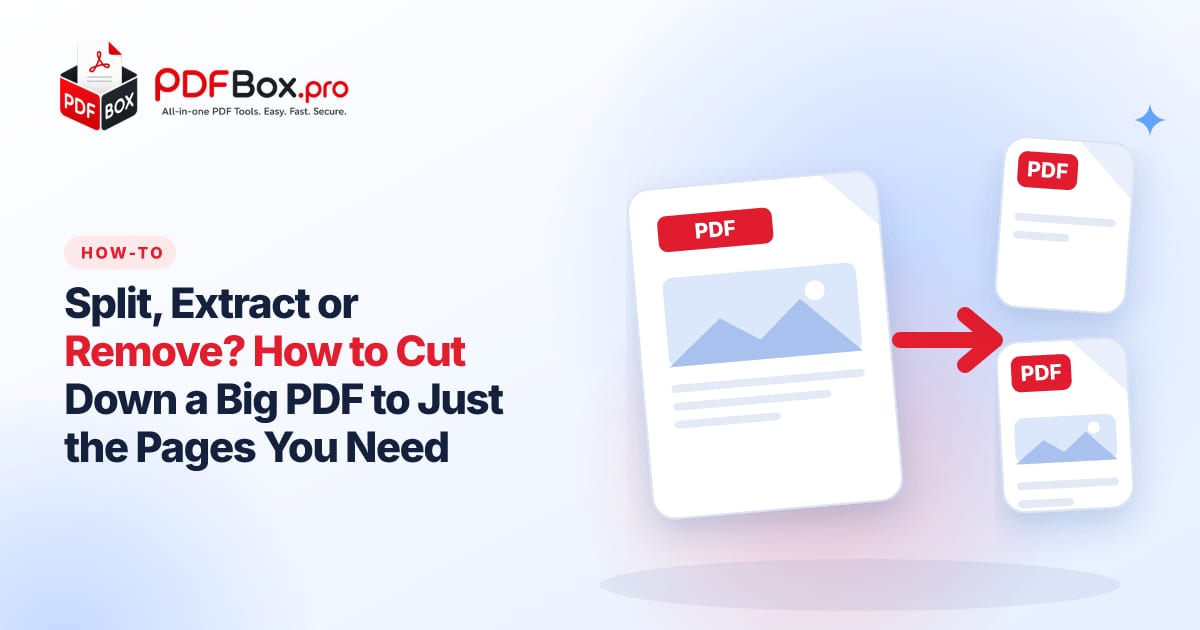
Split cuts one PDF into several smaller files. Think of slicing a loaf: you end up with multiple pieces and every page lands in one of them.
Extract pulls the pages you want into a new file and leaves everything else behind. Think of taking a few slides out of a deck to share.
Remove does the opposite: you name the pages you do not want, and what is left stays in one file. Think of deleting the cover sheet and the blank page at the end.
A handy way to remember it: Split gives you many files, Extract gives you one file of your picks, Remove gives you one file minus your rejects.
- Need many files from one? Split PDF.
- Need one small file with only some pages? Extract PDF Pages.
- Need the whole thing minus a few pages? Remove PDF Pages.
Which one should I pick? A quick rule of thumb
Count the pages you are keeping and the pages you are dropping. Whichever number is smaller is your answer.
Keeping 6 pages out of 200? Extract, because naming 6 pages is easier than naming 194. Dropping 3 pages out of 40? Remove. Need the same document handed out in chunks, such as one file per chapter or per team member? Split.
If you are unsure, extract. It never changes your original file, so you can always try again.
There is also a mixed approach. Remove the obvious junk first, then extract the final selection. Two quick steps can be clearer than one complicated page list, especially when you are tired.
How do I pull a few pages out of a long PDF?
This is the most common job: a contract with one page you need to quote, a report where your client only cares about the summary, a manual where you want the troubleshooting chapter.
Open Extract PDF Pages, add your file, choose the pages you want and download the new PDF. Open it before you send it and flip through. Two seconds of checking beats an embarrassing follow-up email.
Selecting pages in a long file is easier when you have looked at it first. Skim the document in the PDF Viewer, jot down the positions you want, then go back to the tool with your list in hand.
One tip: write down the page numbers first. The number printed on the page is often not the same as the position in the PDF, because front matter like a cover and a table of contents shifts everything. Trust the position shown in the viewer, not the footer.
Try it now: Extract PDF Pages
Free, quick, and nothing to install. Open Extract PDF Pages →
How do I split a big PDF into smaller files?
Splitting shines when one big file is the problem. Maybe an email system rejects it, or maybe you want to hand each chapter to a different person.
Open Split PDF, add the file and choose how to divide it. You get several PDFs back that together contain every page of the original. A classic use: a scanned bundle that mixes several documents, such as a lease, an ID copy and a bank letter, which you want as separate files.
Name the pieces sensibly right away. "chapter-1.pdf" beats "split-part-3-final.pdf" when you open your downloads folder next week.
When is removing pages the cleaner choice?
Removing is perfect for tidy-ups. A fax cover page, a blank back side from a double-sided scan, an "intentionally left blank" page, a page with details you do not want to share.
Use Remove PDF Pages, pick the pages to drop and download. You keep one document in the original order, just lighter.
Be careful if the removed page was referenced elsewhere. A table of contents that points to page 12 will not update itself, so skim the result.
Splitting is also a gentle way to deal with a file that is awkward to open or share. Smaller pieces are easier to attach, easier to review one at a time, and easier to replace if only one part changes.
What if the result is still too big to send?
Cutting pages usually helps a lot, but a few image-heavy pages can still be large. If your trimmed file is still over the limit of your email or upload form, run it through Compress PDF as a last step.
Order matters: cut first, compress second. Compressing 200 pages only to throw away 194 is wasted effort.
Real-life examples: who uses which tool?
The job applicant. A recruiter wants your diploma, but your education file is a 30-page scan of everything. Extract the diploma page and send only that. Short, polite, easy to open.
The student. Your professor shares one giant reading packet, and you only need chapter 4 for tonight. Extract those pages, or split the packet into chapters so each one is its own file you can find later.
The freelancer. A client sends a 60-page brief, and you need to attach three pages to an invoice. Extract them, check the order, send. If one of those pages has a client's private notes in the margin, drop it with Remove first.
The tenant or landlord. A long lease scan includes a signature page you must return separately. Extract that one page, or split the lease into the main body and the appendix so each person gets what they need.
The office admin. A scanner that batches a whole stack into one PDF is a gift and a curse. Split it into one file per document, then rename each file.
Five checks before you send the smaller file
A quick final pass keeps small PDFs from turning into big problems.
- Page count: does it match what you meant to keep?
- Order: are the pages in the sequence the reader expects?
- Orientation: a sideways scan can be fixed with Rotate PDF.
- Sensitive details: if the pages you kept still show things you would rather not share, think again before sending. As a general rule, avoid uploading highly sensitive documents to any website.
- File name: rename it so the recipient knows what it is.
Frequently asked questions
How do I extract one page from a PDF?
Open Extract PDF Pages, add your file, select the single page you want and download the result. You get a new one-page PDF, and your original stays as it was.
Can I split a PDF into separate pages?
Yes. Use Split PDF to divide your file into smaller PDFs. If you only need a handful of specific pages instead of everything, Extract PDF Pages is usually quicker.
What is the easiest way to delete pages from a PDF?
Use Remove PDF Pages: add the file, choose the pages you want to drop and download the rest as one document. Check the result for references to pages that no longer exist.
Back to all posts