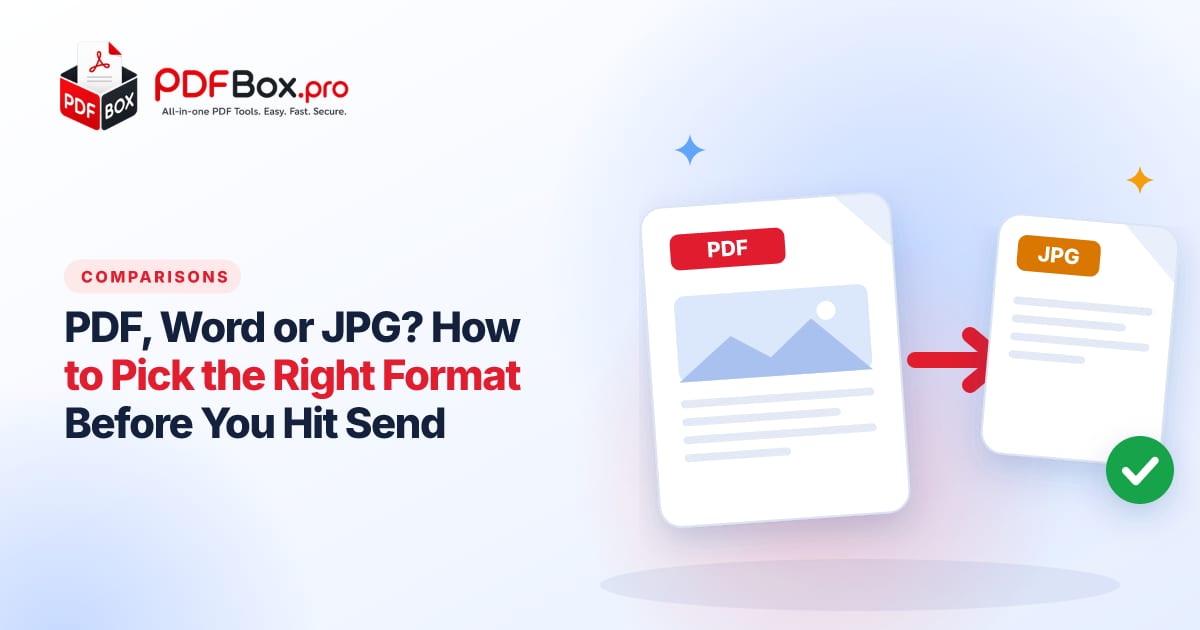
You finish the document, attach it, hit send, and then the reply arrives: "The layout looks weird on my phone." Or: "Can you send it in a format I can edit?" Or the classic: "The photo of the form is too blurry to read." None of those are the recipient's fault. Each file format is good at one job and awkward at the others. Here is a quick way to choose, and how to convert when you chose wrong.
What is each format actually good at?
Think of the three formats as three different kinds of paper.
PDF is the printed page. It keeps fonts, spacing and page breaks the same on any device, which is exactly what the name Portable Document Format promises. It is meant to be read, signed and filed, not rewritten.
Word (DOCX) is the draft on your desk. It is built for editing, comments and tracked changes. The price is that layout can shift depending on the fonts and app the other person has.
JPG is a photograph of the page. It is a lossy image format, so it is great for photos and quick previews, and poor for text-heavy pages you need to read closely or print.
None of this is about one format being better. It is about matching the format to what happens next to the file: read, edit, print or post.
Which format should you send for common situations?
A short cheat sheet you can steal:
If you are unsure, ask what the other person will do with the file in the next five minutes. Read it? PDF. Change it? Word. Glance at it? Image.
- Job application, CV, cover letter: PDF. Your formatting survives, and nobody can accidentally nudge a heading out of place.
- Contract or agreement to sign: PDF, so everyone sees the same pages.
- Draft that someone must edit or comment on: Word.
- Invoice or receipt: PDF.
- Photo, screenshot or poster for social media or chat: JPG.
- Slides to read on a phone: PDF is usually friendlier than the original deck.
Why does my Word document look different on someone else's computer?
Word files describe a document rather than freezing it. If the other person lacks your font, the app substitutes another one, line lengths change, and suddenly your tidy one-page CV spills onto page two with a lonely bullet point.
Tables, text boxes and images placed with precise positioning are the usual victims. Different versions of Word and different apps (or a phone viewer) interpret them slightly differently.
The fix is simple: when the document is finished and nobody needs to edit it, turn it into a PDF. Word to PDF does that in a few seconds. Open the result once and scroll through it before sending, so you see what they will see.
A small habit helps here: keep your working copy as a Word file, and treat the PDF as the "export" you send out. Each time you change the draft, make a fresh PDF rather than editing an old one.
Does the format change how it prints?
Yes, more than people expect. A PDF carries its page size and margins with it, so what you see on screen is what comes out of the printer. A Word file prints according to the printer settings and fonts of the computer it is opened on, which is how a footer ends up stranded on its own page.
A JPG prints at whatever resolution it was saved at. A photo that looks fine on a phone can turn soft and grainy on A4 paper, and text in it never gets any sharper.
If the person on the other end will print your file, such as a boarding pass, a form or a flyer, a PDF is the kind choice.
When is a JPG the wrong choice?
Photographing a page with your phone is quick, and it is tempting to send the picture. But images of documents bring problems: shadows, skewed edges, compression blur, and no way to search or copy text.
Multi-page documents get worse. Five separate JPGs in an email are easy to miss, easy to open in the wrong order, and annoying to print.
If you already have the photos, bundle them. JPG to PDF turns images into a single document, so the reader gets one tidy file with pages in order. If you have photos and PDFs mixed together, Merge JPG and PDF puts them all in one file.
How do you turn a PDF back into something editable?
Sometimes you receive a PDF and need to change it: update a price list, reuse a paragraph, fix a date. PDF to Word converts the file into a Word document you can edit.
Set expectations, though. A PDF is built for looking, not editing, so complex layouts such as multi-column pages or heavy design may not come back perfectly. Check the converted file, and expect to tidy spacing and fonts. Simple text documents usually convert most cleanly.
A scanned PDF is really a picture of a page. Do not assume it will become neatly editable text, and always proofread what comes out.
What if you need a PDF page as an image?
The reverse trip is common too. A designer wants one page as a picture, a website needs a thumbnail, or you want to drop a page into a chat or a slide.
PDF to JPG converts pages into images. Because JPG is lossy, text edges can soften slightly, so use it for sharing and previews rather than as your only master copy. Keep the original PDF.
Which mistakes do people make most often?
Most format trouble comes from a handful of habits:
- Sending Word when nobody needs to edit. It invites layout shifts and accidental changes.
- Sending a phone photo of a printed page. Shadows and tilt make it harder to read than a real PDF.
- Sending ten separate attachments. Combine them into one file with Merge PDF so nothing gets lost.
- Converting your only copy. Always keep the original editable file, then convert a copy.
- Not opening the result. Conversions are quick, but a quick look at the output is quicker than an apology email.
What should you check before sending any file?
Thirty seconds of checking saves a round of emails.
- Open the final file yourself, not the draft, and scroll through every page.
- Check the file name. "CV_final_v7_REAL.pdf" is not a good look. "Jane-Smith-CV.pdf" is.
- Look at the file size. If it is too big for email, try Compress PDF.
- Ask yourself whether the person needs to edit it. If not, send a PDF.
- If it holds sensitive details, avoid uploading highly sensitive documents to any website, and think about who really needs a copy.
The one-line rule
If it is meant to be read, send a PDF. If it is meant to be edited, send Word. If it is meant to be looked at, send an image.
Keep the editable original, convert when you share, and you will rarely get the "it looks weird on my phone" email again.
Try it now: Word to PDF
Free, quick, and nothing to install. Open Word to PDF →
Frequently asked questions
Is PDF or Word better for a resume?
For sending to an employer, PDF is usually the safer choice because the layout stays the same on every device. Send Word only if the employer specifically asks for an editable file.
Can I convert a PDF to Word and keep the formatting?
Simple text documents usually convert well, but complex layouts such as columns, tables or design-heavy pages may need some tidying afterwards. Always review the converted file.
How do I turn several photos into one PDF?
Add the images to a JPG to PDF tool, arrange them in the order you want, and download a single PDF. That is easier to send and print than a stack of separate pictures.
Back to all posts