Somewhere between a spreadsheet and a software project, a PDF turns into a problem. A teammate asks for "the contract as JSON." A form wants the file "as a Base-64 string." Someone needs the report "in HTML so we can drop it on the intranet." They all sound like the same favour in different costumes. They are not, and picking the wrong one means a file that opens fine and is useless for the job. Here is what each export actually gives you, so you pick right the first time.
Why do so many PDF exports look alike but behave so differently?
A PDF is a picture-perfect page description. It knows where each word sits on the page, but it does not really know what a paragraph, a heading or a table is. Every converter has to decide what to keep, and the choices differ a lot.
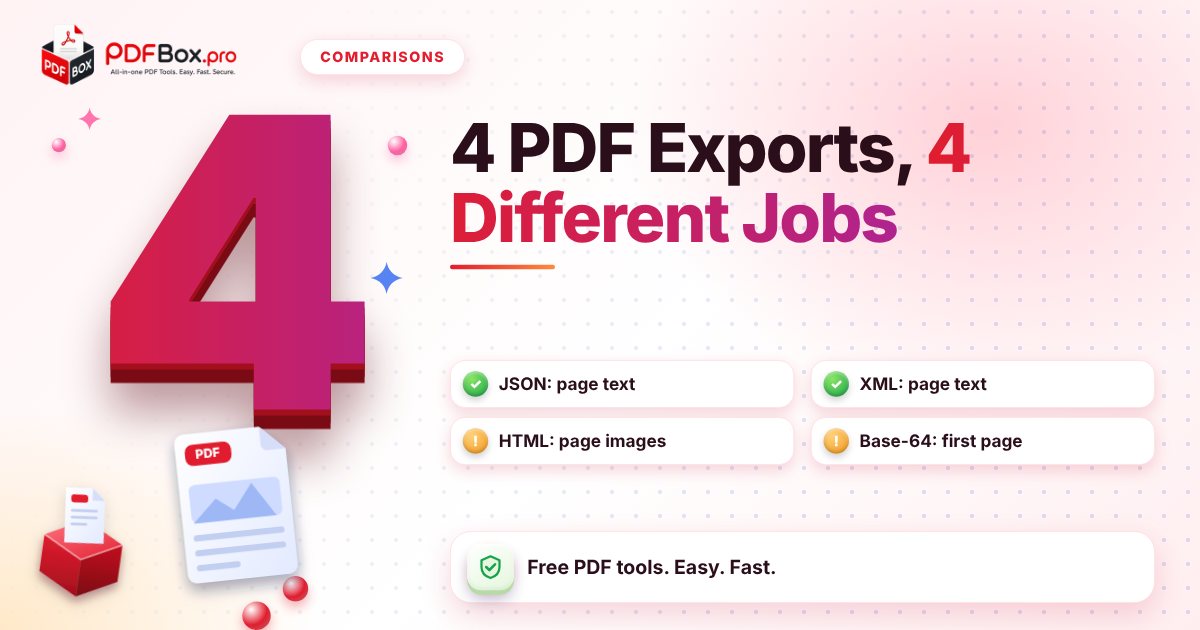
Broadly, the four exports here fall into two families. Text-based exports (JSON and XML) pull the words out and wrap them in structure that software can read. Picture-based exports (HTML and Base-64) keep what the page looks like, and then wrap that picture in a format that is easy to embed or send.
Mixing the families up is the most common mistake. Someone asks for "JSON" hoping to see the page layout, or asks for "HTML" hoping to copy the text. Neither will do that.
What do you get from PDF to JSON?
The PDF to JSON tool reads the text on each page and gives you a small JSON file: one entry per page, with the page number and the text of that page as a single string.
That is a great starting point when a script or app needs the words from a PDF: search them, count them, feed them into another system, or split them by page. It is not a table parser. If your PDF is a price list, you will get the numbers and names in reading order, mashed into one line of text, not neat rows and columns.
If rows and columns are what you are after, the PDF to Excel or PDF to CSV tools are the closer fit.
- Best for: feeding page text into code, search indexes, quick scripts
- You get: page number plus the page's text
- Watch out for: no headings, no table structure, no images
What is different about PDF to XML?
PDF to XML does nearly the same job with different clothing. You get a file where each page is a page element carrying its number, with the page's text inside.
Why would you want that instead of JSON? Usually because the system on the other end asks for it. Older document workflows, publishing pipelines and some enterprise tools speak XML and nothing else. If nobody has said "XML," JSON is usually the simpler pick.
The content is the same kind of thing, so the same warning applies: this is the text of each page, not a map of its layout.
When is PDF to HTML the right call?
This one surprises people. The PDF to HTML tool produces a page you can view in a browser, built from images of your PDF pages. It is about keeping the look, not about handing you editable web text.
So choose it when you want a quick way to show a document inside a web page or an email-style layout, exactly as it appears. Do not choose it if you plan to copy sentences out of the result, or if search engines should read the words. A picture of text is still a picture.
If you want the actual words, go to PDF to Text instead. If you want something web writers like, PDF to Markdown is a better home for text.
- Best for: showing pages visually in a web page
- Watch out for: the words are not selectable text
- Better for text: PDF to Text or PDF to Markdown
What does PDF to Base-64 actually do?
Base-64 is not a file type so much as a disguise. It turns binary data into a long string of plain letters and numbers, which can travel safely through places that only accept text: a JSON field, an email body, a configuration file, a form on a web page.
With the PDF to Base-64 tool, you upload a PDF and get a text file back containing that string. One thing to check before you rely on it: the tool encodes a picture of the first page, not the whole document. That is perfect for a thumbnail or a preview image, and exactly wrong if the receiving system expects the full PDF with all its pages.
So test it. Take the output, decode it on the other side, and see what comes out. Two minutes now saves a confused support ticket later.
Which one for which job?
Here is the short version, matched to the questions people actually ask:
Try it now: PDF to JSON
Free, quick, and nothing to install. Open PDF to JSON →
- "I need the words, by page, for a script." → JSON
- "The other system insists on XML." → XML
- "I want the pages to look the same on a web page." → HTML
- "I need a text string of a page image to pass through a form or API." → Base-64
- "I need the words to read or edit." → PDF to Text, or PDF to Word
- "I need a table in a spreadsheet." → PDF to Excel or CSV
What should you check before you send the result?
Run the same three-point check every time. It takes a minute and catches nearly every failure.
First, open the output. JSON and XML open in any text editor. If the page text is garbled or empty, the PDF may be a scan, which holds pictures of words rather than real text. These tools read text that is actually in the file.
Second, check the page count. Make sure every page is there, or in the Base-64 case, remember it covers one page only.
Third, trim first if the file is huge. If you only need a few pages, cut them out with Extract PDF Pages before converting. Smaller input, smaller output, fewer surprises.
And a general note: avoid uploading highly sensitive documents to any website, this one included. Convert the harmless sample first if you are only testing.
A quick workflow if you are not sure what the other side wants
Ask one question: what will read this file, a person or a program? People want text or a spreadsheet. Programs want structure, so JSON or XML.
If you still cannot tell, send a small test. Convert a one-page version, hand it over, and ask whether it works. Nobody minds testing a single page, and everybody minds a surprise 80-page export that turns out to be the wrong kind of file.
Frequently asked questions
Does PDF to Base-64 convert my whole PDF?
The tool renders the first page as an image and encodes that. If you need every page, split your file into single pages first, or use a different approach. Always decode a test result to confirm what you got.
Can I get a table out of a PDF as JSON?
PDF to JSON returns the text of each page as a single string, so tables lose their rows and columns. For tables, PDF to Excel or PDF to CSV is the closer fit.
Why is my JSON or XML output empty?
Scanned PDFs hold pictures of text rather than real text, so there may be nothing for the tool to read. Open the original and try selecting a sentence: if you cannot, it is probably a scan.
Back to all posts