
You have a lovely PDF: a one-page infographic, a checklist, a few pages of a report. Now someone wants it as a picture. A carousel post, a slide in a deck, an image to drop into a chat that refuses attachments. So you do what everybody does: zoom in, screenshot, crop, squint, re-screenshot. The result is fuzzy, the edges are uneven and page three has half of your browser's toolbar in it. There is a tidier way. Treat the PDF as the source and turn the pages you need into proper image files. Here is the whole routine, start to finish.
Why is a screenshot the wrong tool for this?
A screenshot captures whatever your screen happens to show: the zoom level, the window size, the scrollbar, a notification that popped up at the wrong moment. Two screenshots of the same document rarely match, so a set of them looks lopsided as soon as you line them up in a carousel.
Converting the page itself gives you one clean image per page, all the same shape, with nothing from your desktop in them. It also takes less effort than lining up a selection box eight times.
Step 1: Which pages do you actually need?
Before converting anything, decide what is going into the images. A 20-page report does not need 20 pictures; usually it needs three or four pages that carry the point.
Open the file in the PDF Viewer and note the page numbers worth keeping. Then use Extract PDF Pages to pull just those into a small new PDF. Working from a short file makes everything after this faster and keeps you from converting pages you will never use.
- One idea per image works best: a single chart, a single checklist, a single quote.
- Keep the order you want the viewer to see; you can reorder pages with Organize PDF first if needed.
- If the PDF started life as slides, remember you can build it from the deck in the first place with PPT to PDF.
Step 2: Should you trim the margins first?
Pages come with white space around the content: margins, a footer, a page number you do not want in a social post. If you convert as is, you carry all of that into the picture, and the content ends up small in the middle of the frame.
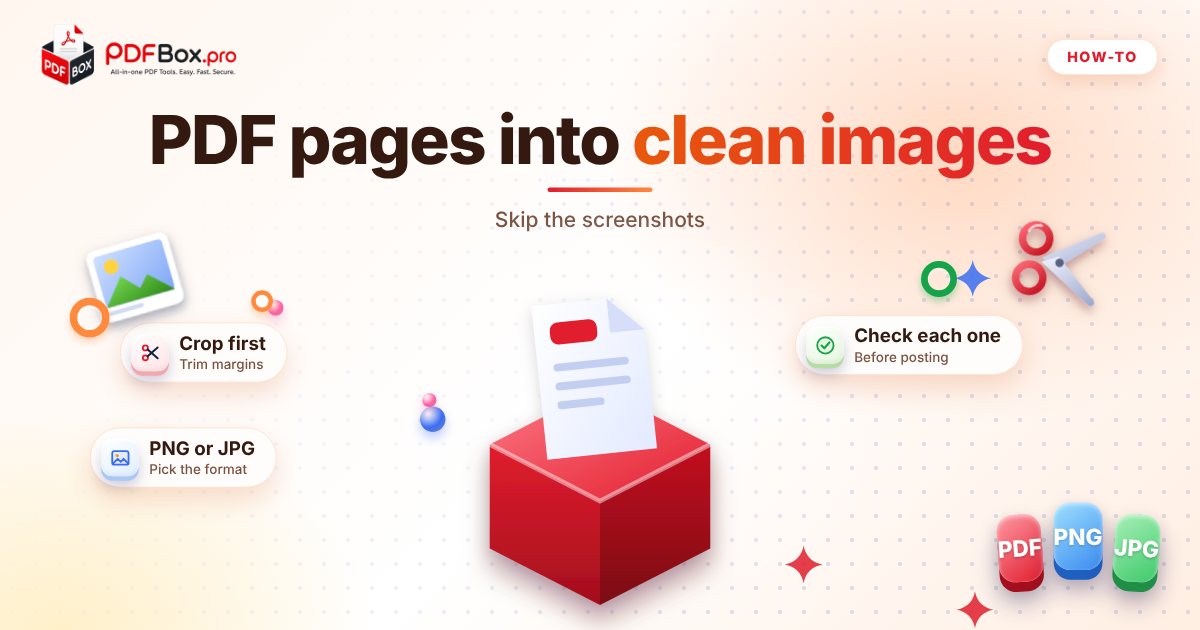
Run the pages through Crop PDF first and trim down to the part you want people to see. Do this before converting, because it is much easier to crop a page once than to crop eight separate images afterwards. Crop every page by the same amount and your images will line up neatly.
PNG or JPG: which image format should you choose?
Both work, and the right one depends on what is on the page.
Use PDF to PNG when the page has sharp text, thin lines, charts, logos or flat colour. PNG handles those crisply, which is why it suits infographics and slides. The trade-off is that PNG files can be larger.
Use PDF to JPG when the page is mostly photographs, or when a smaller file matters more than razor-sharp edges. JPG is a lossy format, so it squeezes the picture by discarding some detail. On photos you will hardly notice; around small text you sometimes can.
If you are unsure, convert one page both ways and compare them at the size people will actually see. It takes under a minute.
Step 3: How do you convert the pages?
Open your chosen tool, add the trimmed PDF, press the button and download the images. You get one image per page, named in page order, so they are ready to upload in the right sequence.
Check each image before you share it. Open the first and last one at full size and look for anything cut off at the edges, and read the smallest text on the page. If it is hard to read on your screen, it will be harder on a phone.
Where does this routine come in handy?
Once you have the habit, you will notice it all over the place.
- Carousel posts. A multi-page PDF becomes a swipeable set of images in the right order.
- Slides. Drop a single PDF page into a presentation as a picture so it looks exactly the way it did in the original.
- Chats and forums. Some places accept pictures but not attachments. A page as an image gets through.
- Documentation and tutorials. Show one page of a form or a layout without handing over the entire file.
- Thumbnails. Use page one of a report as a preview image next to the download link.
What mistakes should you avoid?
A few small things trip people up over and over.
Converting the whole document. Extract the pages first. Fewer files, less clutter, less to check.
Forgetting the crop. Page numbers and footers are easy to miss until they are sitting in your public post.
Choosing JPG for text-heavy pages. If readability matters most, go with PNG.
Sharing a page you did not mean to. Look at every image before you post it: names, addresses, account numbers and anything else personal can hide in a corner. As general advice, avoid uploading highly sensitive documents to any website.
Treating the image as editable. A picture of a page is just a picture. If you need to change the wording later, keep the original PDF or Word file.
What if you need the text, not a picture?
Sometimes an image is the wrong target. If people need to copy the words, a picture will frustrate them, because you cannot select text inside it. In that case share the PDF itself, or pull the words out with PDF to Text and paste them under your image as a caption or alt text. Your readers who use screen readers will be glad you did.
Frequently asked questions
How do I save a single page of a PDF as an image?
Pull that page out with Extract PDF Pages, then convert the small PDF with PDF to PNG or PDF to JPG. You get an image of just that page instead of the whole document.
Is PNG or JPG better for converting a PDF page?
PNG suits pages with text, charts and flat colour because edges stay crisp. JPG suits photo-heavy pages and keeps files smaller, but it is a lossy format, so fine detail can soften.
Can I turn a multi-page PDF into several images at once?
Yes. Convert the PDF and you get one image per page in page order. To avoid extra files, extract only the pages you need before converting.
Back to all posts