
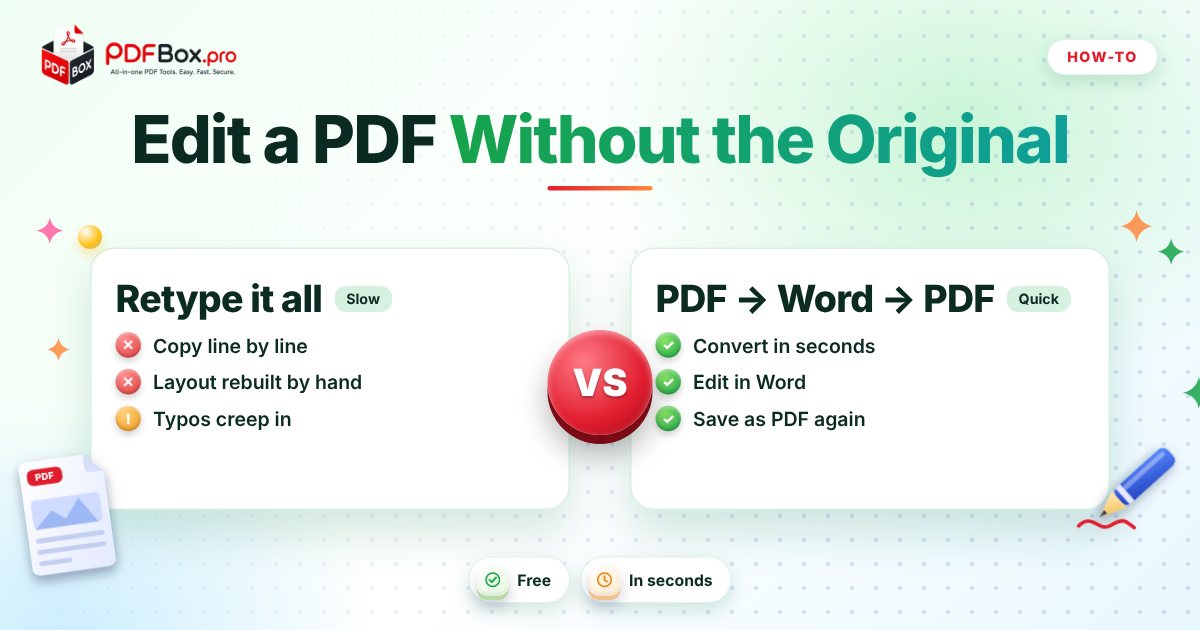
It always happens at the worst moment. A client wants the new date on the contract, your landlord needs a corrected address, or your CV has a typo you only spotted after sending it. And the original Word file? Gone. Deleted, on an old laptop, or never yours to begin with. The good news: a PDF is not a dead end. The trick is to stop trying to edit the PDF itself and go around it. Turn it into a Word document, fix what you need, and turn it back into a PDF. Here is the whole routine, plus the things that tend to trip people up.
Why is it so hard to edit a PDF in the first place?
A PDF is built to look the same on every screen and printer. That is its superpower, and also the reason editing is awkward. Instead of a flowing document with paragraphs that reflow when you type, a PDF is closer to a finished printout: each piece of text is placed at a fixed spot on the page.
So when you want to change a sentence, you are not really editing a document. You are asking software to guess where one paragraph ends and the next begins. Word is built for exactly that kind of reflowing, which is why a round trip through Word is the easiest route for most everyday changes.
What does the PDF to Word to PDF routine look like?
Three steps, usually under five minutes for a short document:
Try it now: PDF to Word
Free, quick, and nothing to install. Open PDF to Word →
- Convert: upload your file to PDF to Word and download the .docx.
- Edit: open it in Word (or any word processor), change the text, and check the layout page by page.
- Convert back: run the finished file through Word to PDF so everyone sees the same thing on any device.
Step 1: Convert the PDF to Word
Open PDF to Word, add your PDF, and press the button. When it finishes, download the Word file and keep the original PDF safe somewhere. Never work on your only copy.
One honest expectation: the conversion rebuilds the page as best it can, so simple documents (letters, CVs, reports, forms with plain text) tend to come through nicely, while heavily designed pages may need a little tidying. Also, a PDF that is really a scan, meaning a photo of paper, has no real text inside it to convert, so do not expect typed text to appear from nowhere.
Tip: if the document is long, scan the first and last pages and one page in the middle straight after converting. If those three look right, the rest is usually fine, and you have saved yourself from proofreading blindly.
Step 2: Edit, then proofread the whole thing
Make your change, but do not stop there. Scroll through every page and look for the usual suspects: a heading that jumped to the next page, a table column that shifted, a font that got swapped, a bullet list that lost its indent.
A quick habit that saves embarrassment: change one thing, then compare the page against the original PDF side by side. If the layout drifted, fix it now. It takes seconds in Word and is a pain to fix after you have sent the file.
Take extra care with numbers. Dates, amounts, phone numbers and reference codes are the details a reader will actually act on, so check each one against the original even if everything around it looks perfect.
Step 3: Convert it back to PDF
Once the Word file looks right, send it through Word to PDF. You get a fixed, shareable file again, so the reader does not see odd fonts or shifted lines because their computer is different from yours.
Give the new file a clear name such as contract-v2-corrected.pdf rather than overwriting the old one. Future you will be grateful.
What if I only need to change a page or two?
You do not have to convert the whole document. If page 3 is the only page with the wrong date, pull it out, fix it, and slot it back in:
- Use Extract PDF Pages to save just the page you need to change.
- Convert and edit only that page.
- Use Remove PDF Pages to drop the old version, then Merge PDF to combine the corrected page with the rest, and Organize PDF if it needs to move back to the right position.
What goes wrong most often, and how do you fix it?
A few repeat offenders:
- Text looks like gibberish or boxes: the original used a font your computer does not have. Pick a similar font for the whole document rather than fixing letter by letter.
- Tables fall apart: check column widths first. If a table is stubborn, rebuilding it in Word can be quicker than nudging every cell.
- Page count changed: a slightly different font size or margin can push text onto a new page. Adjust spacing until the pages line up again.
- Nothing to edit at all: the PDF is probably a scan. A scan is a picture of a page, so there is no typed text to change. In that case it is often easier to retype the document in Word.
Is this the right approach for every document?
Not always. Be careful with documents where the exact layout is the point, such as a signed agreement, an official form or anything someone else will compare against the original. If you change an agreement that other people have already signed or approved, tell them what changed and get their sign-off again; a quiet edit is a bad idea.
For your own files, though, such as CVs, reports, invoices you issued, and worksheets, the convert, edit, convert-back loop is the fastest fix there is.
What should I do before sending the edited PDF?
Run a mini-checklist: read the changed lines out loud, check that page numbers and headers still look right, and open the finished PDF once to make sure it looks like you expect. If it needs a signature, Sign PDF lets you draw, upload or type yours. And as a general rule, avoid uploading highly sensitive documents to any website.
If the final PDF is heavy because of embedded images, Compress PDF can shrink it before it goes into an email.
Frequently asked questions
Can I edit a PDF for free without the original Word file?
Yes. Convert it with PDF to Word, change the text in Word, then turn the result back into a PDF with Word to PDF. Both tools on PDFbox are free.
Why does my PDF look different after converting it to Word?
A PDF stores each piece of text at a fixed position, while Word expects flowing paragraphs, so the conversion has to rebuild the layout. Simple documents usually survive well; complex designs, tables and unusual fonts may need a quick tidy-up.
Can I change just one page of a PDF?
Yes. Extract the page, edit and convert it, then remove the old page and merge the corrected one back into the document. Organize PDF can put it in the right position.
Back to all posts