
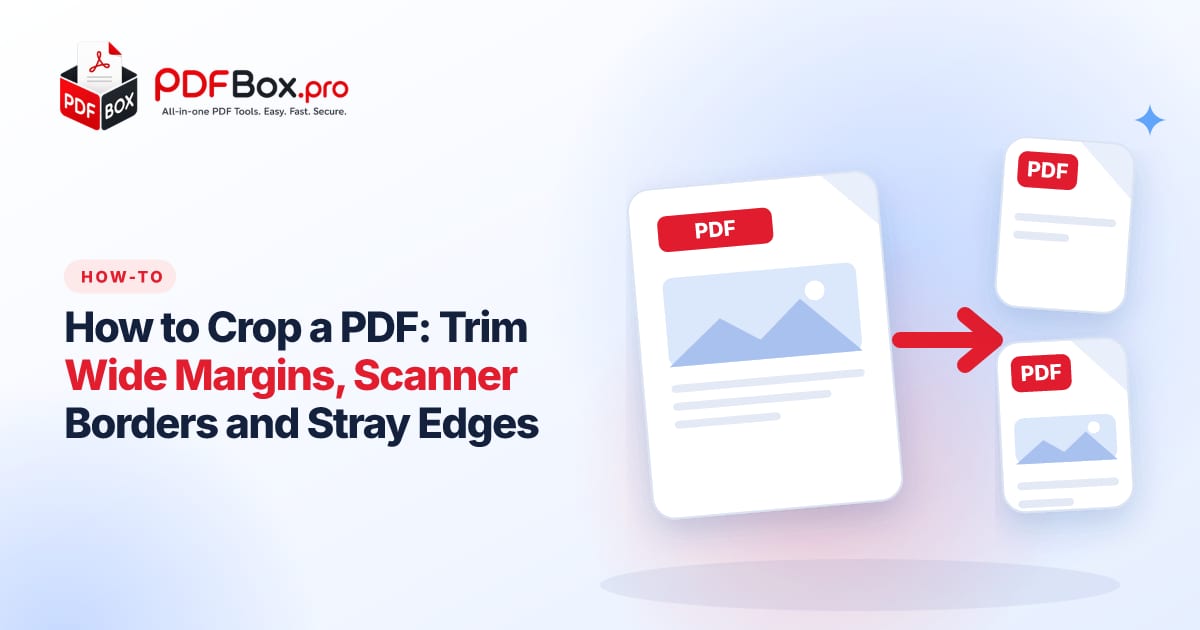
You open a PDF and the actual content sits in the middle of the page like a postage stamp on a pillowcase. Or the scan has a dark shadow down one side. Or a screenshot of a spreadsheet arrives with three inches of blank space under it. The file works fine, it just looks sloppy, and it is miserable to read on a phone. The fix is cropping: telling the page to show only the part you care about. It takes a minute once you know the tricks below, including the ones that stop you from accidentally chopping off a page number.
When is cropping a PDF actually worth it?
Cropping is not for every file, but a few situations come up again and again.
The common ones are scans with dark borders or a desk visible at the edges, slides or reports exported with huge margins, screenshots saved as PDF with empty space, and pages where a header or footer you do not want to share sits at the edge.
A good test: if you catch yourself zooming in just to read normal text, the margins are probably the culprit.
- Scans with shadows, black edges or a bit of the table showing
- Documents with big blank margins that make the text tiny on a phone
- Pages with a footer, stamp or note near the edge you would rather not show
- Printing: less wasted white space can mean bigger, easier-to-read content
How do you crop a PDF online, step by step?
Open Crop PDF, add your file, and set the area of the page you want to keep. Check the preview, apply the crop, then download the new file.
The most important habit: look at the result before you send it. Scroll to the pages with the most content, because that is where an over-eager crop bites.
- Open the Crop PDF tool and add your file
- Mark the area you want to keep
- Apply the crop and download the result
- Open the downloaded file and scroll through it before sharing
How tight should you crop?
Leave a little breathing room. A crop that hugs the text looks cramped, and printers often need a thin safe border anyway. A good rule of thumb is to keep a margin about the width of a fingertip around your content.
If the document has page numbers, footnotes or a signature line near the edge, include them in the kept area. Those are the first things a tight crop clips off.
When in doubt, crop a little less. You can always crop again from the original, but you cannot bring back text that got clipped.
Which crop works best for phones and screens?
If people will read the file on a phone, margins are your enemy. A page with an inch of white on every side leaves the text a notch smaller than it needs to be, and pinching to zoom gets old fast.
Trim the sides first, since width is what a narrow screen runs out of. You can be a little braver here than on a document headed for a printer, because nobody punches holes in a screen. Then open the result at normal zoom and ask yourself: can I read this without squinting? If yes, stop cropping.
What if every page has different margins?
This is the classic trap with scans and mixed documents. Page 1 might have a narrow margin and page 7 a very wide one, so a single crop box that suits one page cuts into another.
Choose the crop based on the page with the most content, not the emptiest one. If a few pages are very different, split them off first with Extract PDF Pages, crop each group on its own, and join them again with Merge PDF.
Why does my scan look crooked or sideways after cropping?
Cropping cuts the page, it does not straighten it. If a scan came in sideways, rotate it first with Rotate PDF and crop afterwards, otherwise you will be framing the wrong edges.
A slightly tilted scan cannot be fixed by a crop. If it matters, rescan it flat; if it is only a few degrees off, a clean crop that hides the worst of the border is often good enough.
Can you crop a screenshot or a slide saved as PDF?
Yes, and this is where cropping shines. Exports from spreadsheets, slide decks and web pages often leave a wide band of empty space around one small table or chart. Cropping turns that page into something that looks deliberate.
If the thing you really want is the picture, not the PDF, you can also turn pages into images afterwards with PDF to JPG and drop the cropped result straight into a message or slide.
Does cropping make the file smaller or hide the content?
Do not count on either. Cropping changes what is visible on the page, but the file may still contain the original content, and the size may barely change. So never treat a crop as a way to remove something private or confidential. If a name or number must not be seen, cut the whole page out with Remove PDF Pages or recreate the page without it.
If your goal is a lighter file for email, use Compress PDF after cropping and compare the size.
A quick checklist before you send it
Run through this once and you will rarely send a clipped page again.
- Rotate pages the right way up before cropping
- Crop to the busiest page, not the emptiest
- Keep page numbers, footnotes and signature lines inside the frame
- Scroll through the whole result on screen
- Keep the original file in case you need a different crop later
- Compress afterwards if the file is too big to email
Frequently asked questions
Can I crop only some pages of a PDF?
Yes, with a small workaround. Pull the pages you want to change into their own file with Extract PDF Pages, crop that file, and combine everything again with Merge PDF.
Can I undo a crop on a PDF?
Not in the file you downloaded, so keep your original. If you need a different crop, start again from the original rather than cropping the cropped copy.
Is cropping a PDF the same as deleting what is outside the frame?
Not necessarily. The visible area changes, but you should not assume the hidden part is gone. For anything sensitive, remove the page or recreate it instead of relying on a crop.
Back to all posts