It is Friday afternoon, and your new hire starts Monday. The offer letter is a Word file, the handbook excerpt lives in a slide deck, the benefits form is a phone photo of a printout, and the policy PDFs came from three different people. You could attach all of it to one email and hope for the best. Or you could spend ten minutes turning the pile into a single packet that opens the same way on every laptop and phone. This is a workflow for HR coordinators, office managers and anyone at a small company who ends up running onboarding on the side. Every step uses a free PDFbox tool, and you can reuse the routine for every hire after this one.
Why bother with a single packet?
Five attachments mean five chances for something to go wrong. One file opens in the wrong app, one gets lost in a forwarded thread, and the new hire is not sure whether the version they have is the latest one. A single PDF fixes most of that. PDF stands for Portable Document Format, and the whole point of it is that the layout stays put on any device, so page 3 looks like page 3 for everyone.
A packet also gives you one thing to check, one thing to re-send if somebody loses it, and one thing to point to when someone asks, "Which version did I get?" That is a lot of calm for ten minutes of work.
Step 1: What goes into the packet, and in what order?
Before you touch a tool, write the page order on a sticky note. A sensible default is: welcome note, offer or contract, role and schedule details, policies and handbook pages, forms to fill in, and a short checklist for the first week. Put the things the new hire must act on near the front, and the reference material at the back.
While you are at it, decide what does not belong. If the new hire only needs four pages of a 40-page handbook, pull those four pages instead of sending everything. People skim long attachments, and the one form they must sign tends to hide at page 31.
- Welcome note (one page, written by a human)
- Offer letter or contract
- Schedule, role details, who to ask for what
- Only the policy pages that matter in week one
- Forms to complete, then a first-week checklist
Step 2: How do you get Word, slides and photos into PDF form?
Each piece has to be a PDF before it can join the packet. The conversions are quick, and each tool does one job.
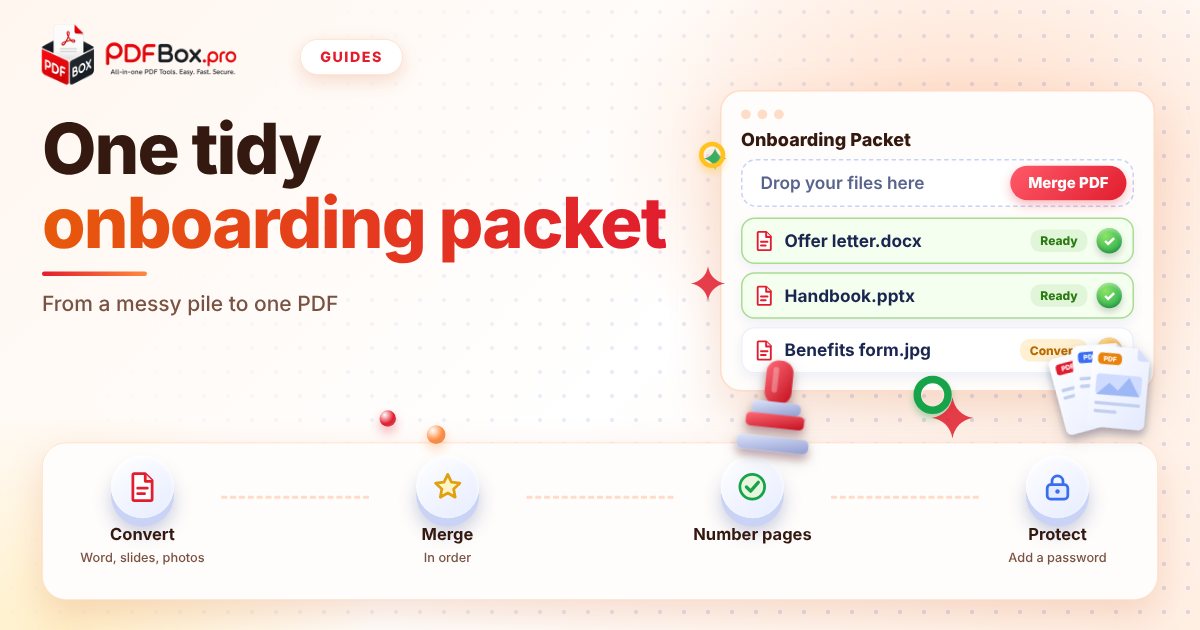
Documents written in Word, like the welcome note and the contract, go through Word to PDF. If the handbook excerpt lives in a slide deck, PPT to PDF turns each slide into a page. And if a form exists only as a phone photo of a paper printout, JPG to PDF wraps the image into a PDF page. Take those photos in good light, straight on, so the text stays readable once it is a page.
Open each result before moving on. A two-second look at the first and last page catches the classic problems: a missing image, a cut-off table, a page that landed upside down.
Step 3: How do you merge everything into one file?
Now for the satisfying part. Drop your PDFs into Merge PDF, arrange them in the order from your sticky note, and download one combined file. If some of your pieces are still plain images, Merge JPG and PDF accepts a mix of both, so you can skip a separate conversion for the photo of the signed form.
Try it now: Merge PDF
Free, quick, and nothing to install. Open Merge PDF →
Name the result something a human will find in six months, such as Onboarding-Packet-Jordan-Lee-2026-11.pdf. Avoid names like final_v3_REAL.pdf. Future you will thank present you.
Step 4: What if the pages come out in the wrong order?
It happens, usually because two files had similar names and sorted differently than you expected. You do not need to start over. Open the merged file in Organize PDF and drag pages into the right place, or rotate and delete any that should not be there.
If you spot a page that should not go out at all, such as a draft cover sheet or an internal note, take it out before the packet leaves your hands. It is much easier to remove a page now than to explain later why a new hire saw a comment meant for the manager.
Step 5: Should you add page numbers and a password?
Two small finishing touches make a packet feel professional. First, run it through Add Page Numbers. When your new hire writes, "I have a question about page 12," you both know exactly where to look, and it helps if anyone prints the packet and the pages get shuffled.
Second, think about a password. An onboarding packet usually includes a name, an address and sometimes bank or ID details. Protect PDF lets you set a password so the file is not an open book if it lands in the wrong inbox. Send the password through a different channel than the file, for example by text message or a quick call, never in the same email.
Whatever tool you use, a general rule applies: avoid uploading highly sensitive documents to any website. If a form contains data you would not want to see leaked, think twice about whether it needs to be in the packet at all.
What about signatures?
Some packets include a form that needs a signature back. You have two simple options. Either the new hire prints, signs and photographs the page, which you can convert and merge as above, or they add their signature digitally with Sign PDF, where they can draw, upload or type a signature.
A word of caution: a signature added this way is a signature image placed on the page. Whether that is enough for a particular contract or local rule is a question for your legal or HR advisor, not for a PDF tool. If a document has legal weight, check the requirements before you rely on it.
A reusable checklist for every hire
Once you have done it once, it is a ten-minute routine. Save this list somewhere handy and run through it each time:
- Write the page order first
- Convert Word, slides and photos to PDF, then open each one
- Merge in order and name the file clearly
- Fix order or remove stray pages with Organize PDF
- Add page numbers
- Protect with a password and send the password separately
- Keep a copy of exactly what you sent
Frequently asked questions
How do I combine a Word document, a PowerPoint and a scanned form into one PDF?
Convert each one to PDF first: Word to PDF for the document, PPT to PDF for the slides, JPG to PDF for a photo of the form. Then combine them with Merge PDF in the order you want. Merge JPG and PDF can also combine images and PDFs in a single step.
How do I password-protect a PDF before emailing it?
Open Protect PDF, add your file, choose a password and download the protected version. Share the password through a different channel than the email carrying the file, such as a text message or a phone call.
How can I reorder or delete pages in a PDF after merging?
Use Organize PDF to drag pages into a new order, rotate them or remove the ones you do not want, then download the updated file. If you only need to remove pages, Remove PDF Pages does that directly.
Back to all posts