It's 4:55 pm and someone has emailed you a file with a name like final_v3_REAL.xyz. You double-click. Nothing. Or a spinner. Or a dialog asking which app you'd like to use, with a list of apps you have never installed. Meanwhile the sender is gone for the day and the deadline is not.
The good news: most "can't open" problems come down to one of three things, and each has a quick fix. Work out which one you're dealing with, and the file is usually readable within a couple of minutes.
Why won't this file open in the first place?
Files fail to open for boring reasons, not mysterious ones. Before you try anything clever, match your situation to one of these:
It's packed inside something else. A ZIP archive is a container. Your computer can't show you a document that's still wrapped up in the box.
You don't have the app that made it. A file made in a program you don't use is a bit like a letter written in a language you don't read. The words are all there; you just have no way in.
It's the wrong shape for the job. Sometimes the file opens fine on the sender's laptop, but a form, a portal or your phone refuses it. That's a format problem, not a broken file.
- File ends in .zip: it's packed, so unpack it first.
- File opens as gibberish or asks for an app: you need a more common format.
- File opens but a website rejects it: convert it before uploading.
Step 1: Is it a ZIP? Unpack it first
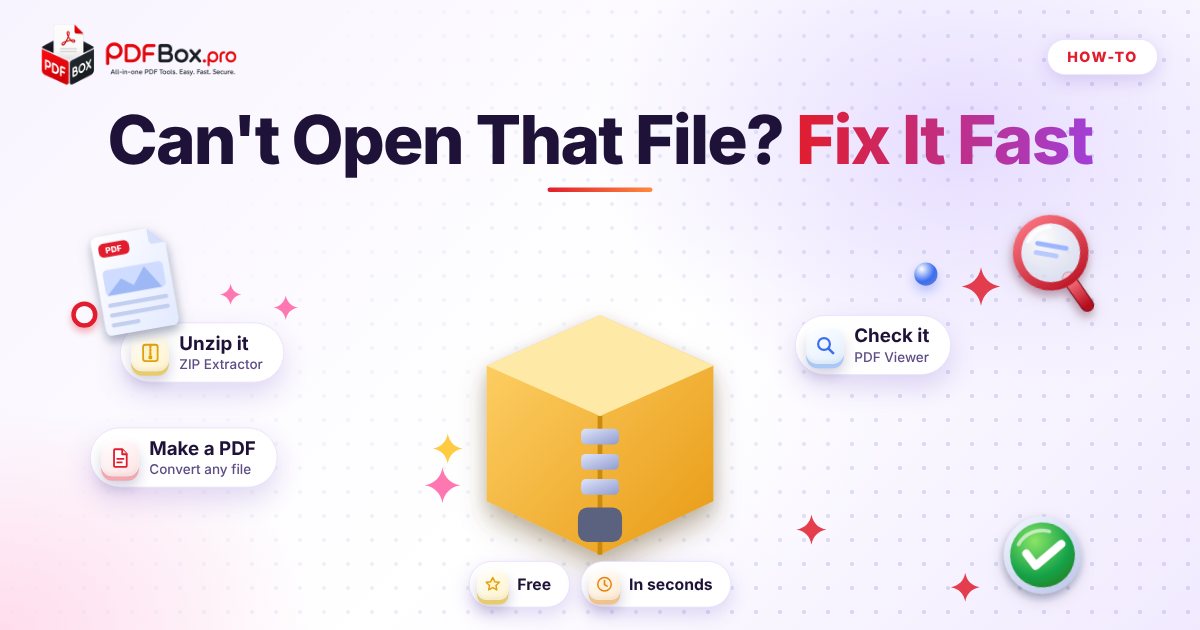
If the name ends in .zip, don't hunt for a viewer. Open the ZIP Extractor, add the archive, and you'll get a list of what's inside. Save the one file you actually need instead of unpacking a folder of forty things you don't.
This is also a good moment to look before you open. If the sender said "here's my one-page CV" and the archive holds a dozen unrelated files, pause and check with them. A quick glance at the file names has saved plenty of people from a nasty surprise.
Once the contents are out, you'll usually have one of three things: a PDF (great, skip ahead), an image (also fine), or a file with an odd extension. That last one is Step 2.
Step 2: Turn the awkward file into a PDF
A PDF is the closest thing the digital world has to a universal page. It keeps its layout on any device, and almost every phone, browser and portal knows what to do with one. So if a file won't open or won't upload, converting it to PDF is the move that most often solves it.
Open Convert Any File to PDF, add your file, press the button, and download the result. The tool page says it handles around 100 different file formats, so there's a good chance yours is on the list, whether it's a document, a spreadsheet, a slide deck or an image.
Don't expect miracles from a conversion. It reproduces what the file contains; it doesn't repair a file that was broken, incomplete or half-downloaded to begin with. If the output is blank or scrambled, try downloading the original again, or ask the sender to resend it.
If your file is a very common type, a dedicated tool can be the better fit because it's built around that one format: Word to PDF for documents, Excel to PDF for spreadsheets, JPG to PDF for photos. Start with the dedicated one when you know what you have; reach for Convert Any File when you don't.
Try it now: Convert Any File
Free, quick, and nothing to install. Open Convert Any File →
Step 3: Check it before you trust it
Conversion is not magic, and it's worth thirty seconds to confirm the result is what you expected. Open the new PDF in the PDF Viewer and flip through it:
Are all the pages there? Does the page order make sense? Do wide tables or long lines look cut off at the edge? Is anything sideways? If a page is turned the wrong way, Rotate PDF fixes that in a click.
Fonts and fancy layouts are the usual weak spot when a file moves between formats. If something looks off, ask the sender for a PDF export straight from their own program. They will almost always have a better copy than any conversion can give you.
What about files that open fine but get rejected?
This one is sneaky, because nothing looks broken. The file opens on your laptop, you attach it to an online form, and the form says "unsupported file type" or simply refuses to move on. Job portals, school systems and rental applications are famous for this. They often want a PDF and nothing else.
The fix is the same as above: convert, then check. If your file is a photo, JPG to PDF turns it into a page. If you have a photo plus a few documents that need to go in together, you can combine everything first and upload one tidy file instead of five loose ones.
A small habit that helps: read the upload instructions before you start, not after the third rejection. If the form names a format, give it exactly that. If it names a size, compress before you try, not after.
And if you're the one sending files, spare your recipient the same headache. Send a PDF unless they've asked for something editable. It's the format least likely to turn into someone else's 4:55 pm problem.
What if the PDF comes out too big to send on?
Image-heavy files make chunky PDFs. If you need to forward the result by email or upload it somewhere with a size cap, run it through Compress PDF and compare it with the original. Check the pages still read clearly, because shrinking a file always trades something for the saved space.
If you ended up with several converted files that belong together, say a contract, an attachment and a cover note, Merge PDF will stitch them into one document so the recipient opens a single file instead of juggling four.
Common mistakes that waste time
A few traps catch people again and again:
- Renaming the extension. Changing
.xyzto.pdfin the file name does not convert anything. It just makes the file lie about what it is, and it will fail to open. - Opening unknown files on autopilot. If you weren't expecting the file, confirm with the sender first, especially if it came in an archive.
- Screenshotting instead of converting. A screenshot is a picture of the file, not the file. Nobody can select text from it and it usually looks worse than a proper conversion.
- Uploading sensitive documents anywhere without thinking. As a general rule, avoid uploading highly sensitive documents to any website. If a file contains something truly private, ask the sender for a safer way to share it.
- Skipping the check. A converted file you never looked at is a file you're hoping is fine. Hope is not a workflow.
A two-minute routine to keep handy
Next time a file refuses to open, run this short list:
- Ends in .zip? Unpack it with the ZIP Extractor.
- Won't open or won't upload? Convert it to PDF.
- Look it over in the PDF Viewer; rotate or fix anything odd.
- Too big? Compress. Several pieces? Merge.
- Send it on, and tell the sender what worked so they can do it next time.
Frequently asked questions
Why can't I open a ZIP file on my computer?
Usually you can't read what's inside until the archive is unpacked. Add the file to the ZIP Extractor, pick the file you need from the list and download it. If the archive is damaged or incomplete, ask the sender to send it again.
How do I convert an unknown file type to PDF?
Try the Convert Any File to PDF tool: add the file, press the button and download the PDF. If your format isn't supported, ask the sender to export a PDF or a more common format such as Word or JPG from their own program.
Does changing the file extension to .pdf make it a PDF?
No. Renaming only changes the label, not the contents, so the file will usually fail to open. You need to convert it with a tool, or have the sender export a real PDF.
Back to all posts