
Merging PDFs feels like the easiest job in the world: drop in some files, press a button, done. And it is easy. The trouble is that the merged file is the one everybody else sees, and a merge makes small problems loud. A sideways page, a duplicate, a missing attachment, a file too heavy to send. Each one is tiny on its own. Together they make your document look like it was assembled in a hurry. Here are six mistakes that turn up again and again, plus the quick fix for each. Most of them take under a minute to avoid if you catch them before you send.
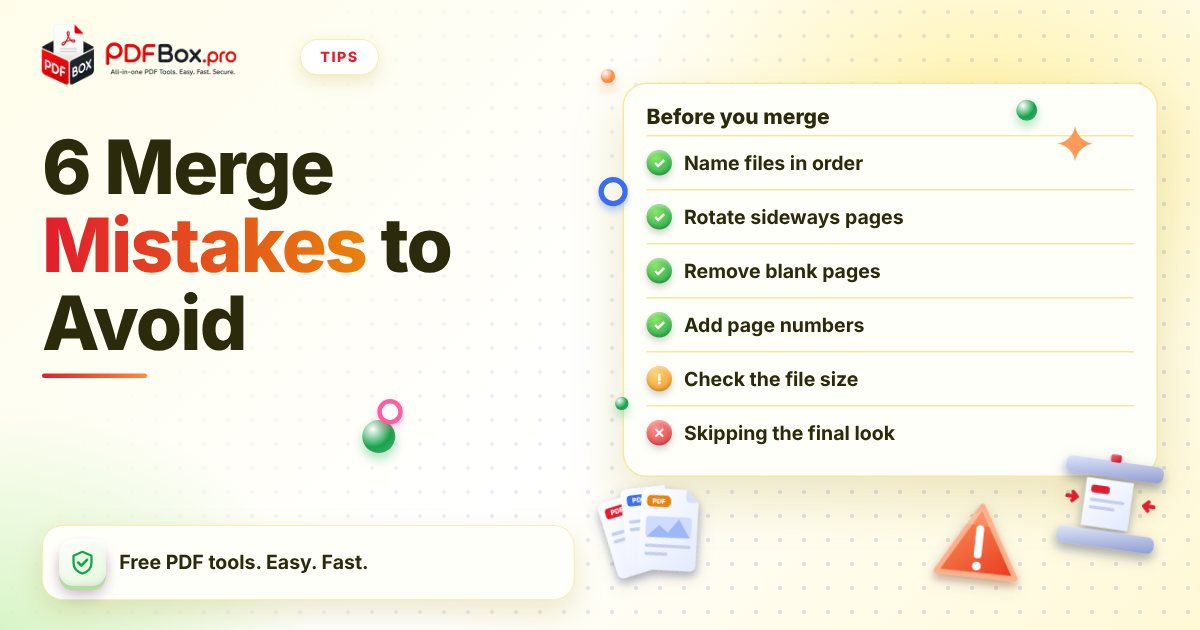
1. Why does my merged PDF come out in the wrong order?
Most merge tools stack files in the order you added them, or sometimes alphabetically. If your files are called scan1, scan2 … scan10, a computer may well put scan10 right after scan1. Suddenly page ten is your second page.
The easy habit: before you merge, rename files with a number prefix that sorts properly, like 01-cover-letter, 02-cv, 03-references. Use two digits so 10 doesn't jump the queue.
Already merged and the order is off? You don't have to start again. Open the result in Organize PDF and drag pages into place.
2. Do I need to check every page's orientation first?
Yes, and this is the one that catches people out. A phone scan or a landscape slide merged next to portrait pages ends up sideways in the middle of your document. The reader then has to tilt their head, or worse, rotate the whole file.
Look through each source file quickly in the PDF Viewer. If something is on its side, fix that file with Rotate PDF first, then merge. Rotating before merging is simpler than hunting for the one wrong page afterwards.
3. Should I merge everything, or trim first?
Merging makes it tempting to throw every file in, including the blank back page, the cover sheet you don't need, and the second copy of the form you accidentally saved twice. Then the final file is longer than it should be and the useful pages are buried.
Before merging, ask of each file: does the reader need all of this? If a file has junk pages, use Remove PDF Pages to cut them. If only a few pages matter out of a long report, Extract PDF Pages pulls out just those, so you merge the part you actually mean to share.
- Blank pages from double-sided scanning
- Duplicate pages from re-saved files
- Cover sheets or fax headers nobody needs
- Whole chapters when only one is relevant
4. What happens if I forget the page numbers?
A merged file of 40 pages with no numbers is hard to discuss. "Look at the table on… um, somewhere near the middle" is nobody's idea of a good meeting. Every original file probably has its own numbering too, so you can end up with page 1 appearing four times.
Once your order is final, run the merged file through Add Page Numbers. One continuous sequence makes the document feel like a single piece, and it makes it easy for the reader to say exactly which page they mean.
Do this last. If you number first and then reorder or remove pages, the numbers go out of sequence and you'll have to redo them.
5. Is it a problem if the merged file is huge?
It can be. Merging doesn't make files smaller; the result is roughly the sum of its parts. Combine a few photo-heavy scans and you can end up with a file that bounces from an email or an upload form.
If that happens, try Compress PDF on the merged result. Keep in mind that compressing generally trades some image quality for a smaller size, so open the result and check that small print and signatures are still readable before you send it.
Compress as the final step, after you've removed unneeded pages and added numbers. There's no point shrinking pages you're about to delete.
6. Why does my merged file look messy when a few of the files are photos?
Photos and PDFs behave differently. A JPG straight from a phone can be a different shape from your A4 or Letter pages, so it sits oddly on the page or looks stretched in the middle of a document.
If your pile mixes images and PDFs, use Merge JPG and PDF to combine them in one go, then look through the result page by page. If you only have PDFs, plain Merge PDF is all you need. Either way, give the output a once-over before you hit send.
A simple order of operations that avoids all six
Follow these steps in this order and most of the mistakes simply can't happen:
- Rename files so they sort correctly (01, 02, 03…)
- Check orientation and rotate any sideways files
- Remove or extract pages so only what's needed goes in
- Merge everything into one file
- Reorder anything that landed in the wrong spot
- Add page numbers
- Compress only if the file is too big to send
- Open the final file and scroll through it once
A quick note before you send
Merging puts everything in one place, which also means one slip can expose more than you intended: a page from a different client, an old draft, a document with personal details. Scroll the final file once to check nothing is in there that shouldn't be. And as general advice, avoid uploading highly sensitive documents to any website.
Try it now: Merge PDF
Free, quick, and nothing to install. Open Merge PDF →
Frequently asked questions
How do I merge PDF files in a specific order?
Add the files in the order you want, or rename them with number prefixes like 01, 02, 03 first so they sort correctly. If the order is still wrong after merging, rearrange the pages with an organize tool.
Why is my merged PDF so large?
A merged PDF is roughly the combined size of the files you put in, so photo-heavy scans add up quickly. Removing unneeded pages and then running the file through a compression tool usually brings it down, though compression can reduce image quality.
Can I merge PDFs and images together?
Yes. A tool that merges JPG and PDF files lets you combine photos and PDFs into a single document. Check the result afterwards, since photos can be a different shape from your document pages.
Back to all posts