
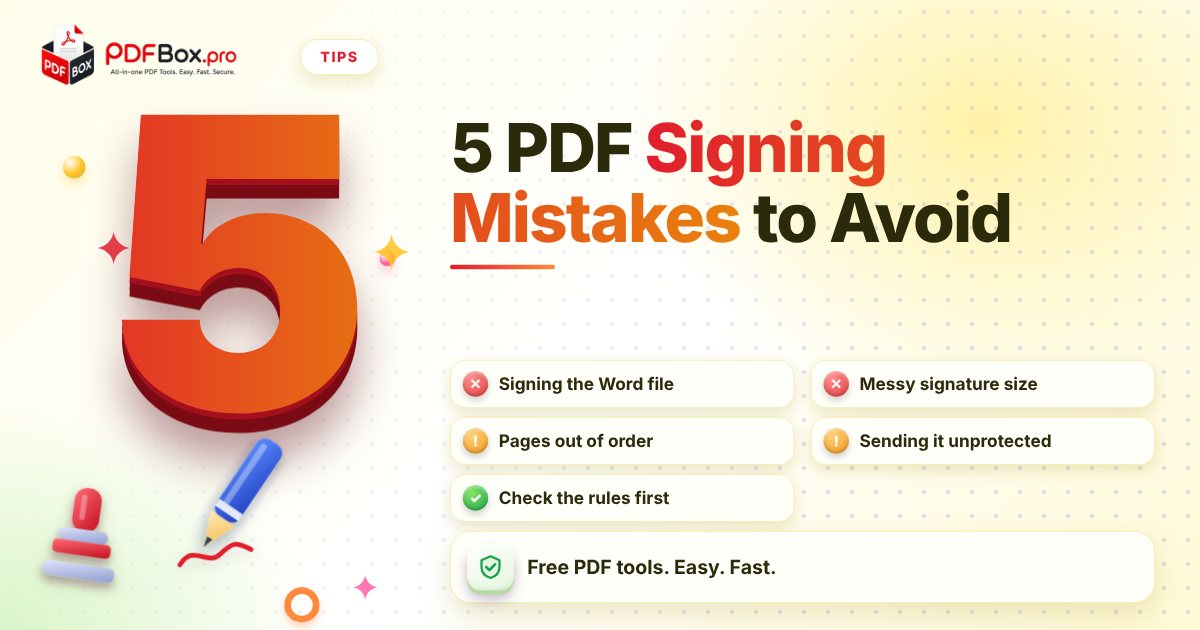
Adding your signature to a PDF should be the easy part. You draw it, drop it on the line, hit download. Done. And yet people send contracts signed on the wrong draft, signatures that float over the text like a lost balloon, and files that bounce because they weigh a ton. None of these mistakes are dramatic. They are just annoying, and they make you look less careful than you are. Here are the five I see most, with a quick fix for each.
Mistake 1: Why signing the Word file is a bad idea
If your document started life in Word, it is tempting to paste a signature image straight into it. The trouble: Word layouts shift. Open the same file on another computer, with another font installed, and your signature can drift off the line or onto the next page.
Convert first, sign second. Run the finished document through Word to PDF, check that the pages look right, and only then add your signature. A PDF keeps its layout on any device, so what you sign is what they see.
A small example: a landlord sends a lease as a Word file with a signature pasted in. The tenant opens it on a phone and the signature has jumped to the top of page four, next to the house rules. Nobody did anything wrong, the format just moved things around. A PDF would not have.
- Finish all edits before converting
- Sign the PDF, never the editable file
- Keep the Word version for your own records
Mistake 2: Does it matter how your signature looks?
Yes, more than you would think. A signature that is huge, tiny, tilted or pixelated looks careless, and a stray scribble over the typed name makes the page hard to read.
Sign PDF lets you draw, upload or type your signature. Drawing works well with a mouse or finger if you take your time. If you upload one, use a sharp, well-lit picture of your signature on plain white paper, cropped close. Then size it to sit on the signature line, not across the paragraph above it.
Do a test on a scrap copy first. It costs thirty seconds and saves you a re-send.
One more detail that gets missed: the signature should match the name printed under the line. If the form says Alex Morgan and you sign a stylised squiggle, that is usually fine. If you type a signature, pick one clear style and stick with it across every document you send. Consistency is a quiet signal that the paperwork is yours.
Mistake 3: Why should you check the pages before you sign?
Signing a document with a blank page 3, a sideways scan or the appendix in the wrong order is awkward to undo, and it is awkward for the person receiving it too.
Scroll through every page before you add anything. If the order is off, fix it in Organize PDF by dragging pages into place. Then add your signature to the final version. The sequence matters: tidy, then sign.
This is also the moment to read the thing. It is easy to sign a document on autopilot, and a quick scroll catches wrong dates, a misspelled name or a missing page. If a page needs to go, Remove PDF Pages takes it out in seconds.
- Right pages, in the right order
- Nothing upside down
- Dates and names filled in before you sign
Mistake 4: What happens if you email a signed file unprotected?
A signed contract often holds names, addresses and amounts. Emailing it as a plain file means anyone who gets hold of it can open it.
Adding a password with Protect PDF is a simple extra step. Send the password separately, ideally by a different channel such as a text message, not in the same email. And as general advice, avoid uploading highly sensitive documents to any website.
If the signed file turns out too big to attach, Compress PDF can shrink it before you send. Open the result and check that your signature still looks clear.
Another habit that helps: name the file clearly. Contract_final_signed.pdf beats scan0042.pdf every time, and it stops you attaching the unsigned draft by accident. Check the attachment name before you hit send, since mixing up the draft and the signed copy is probably the most common slip of all.
Mistake 5: Is a signature image the same as a legally certified signature?
Not necessarily, and this is the one worth a moment's thought. Adding a drawn, uploaded or typed signature puts your signature on the page. It does not by itself make the document certified.
Whether that is enough depends on who asked for it and what the document is. A friendly club form is one thing. A mortgage or a legal contract may have its own rules. If in doubt, ask the person or organisation what they accept before you sign.
A practical middle path: if you are not sure, send the signed PDF and mention in the message that you are happy to sign another way if they need it. That keeps things moving without guessing at rules you cannot see. Wording like this is polite, and it saves a round trip.
A quick pre-send routine
Put the five together and you get a short routine: convert to PDF, check the pages, sign, protect if the content is sensitive, then compress only if you must. It takes about five minutes the first time and far less after that.
Once you have done it a couple of times, it becomes muscle memory. The people on the receiving end will not notice what you did right. They will just notice nothing went wrong, which is the whole point.
Ready to add your signature?
Try it now: Sign PDF
Free, quick, and nothing to install. Open Sign PDF →
Frequently asked questions
How do I add my signature to a PDF for free?
Open Sign PDF on PDFbox.pro, add your file, then draw, upload or type your signature and place it on the signature line. Download the result when you are happy with it.
Can I sign a Word document without printing it?
Yes. Convert it to PDF first with Word to PDF, then add your signature to the PDF and send that. You never need a printer or scanner.
Is a signature image legally binding?
It depends on the document and on who is asking for it. Adding a signature image does not by itself make a file a certified digital signature, so check what the recipient or the rules for that document require.
Back to all posts